
Sending automatic action notification emails
Creating a notification email that is automatically sent by Certainty is a two-step process.
- Create the rule (define the attributes of an action e.g. ‘Overdue’ - that will trigger the notification).
- Define the notification email and its recipients and link it to the rule.
Creating rules
To create rules for email notifications about actions:
- Go to ‘Manage Actions - Action Rules’.
- Click the green ‘Add’ button at the top right of the Rules table to open the ‘Add rule’ form.
- Add a ‘Rule Name’. This should reflect the reason the rule will trigger – for example Overdue Action.
- Choose the site or site groups you would like this rule to apply to. The rule will then only apply to actions that originated at those site(s) or site groups.
- Choose the checklist(s) you would like this rule to apply to. The rule will then only apply to actions that originated from those checklist(s).
- Choose the user or user group you would like this rule to apply to. The rule will then only apply to actions that the user(s) or user group(s) is/are responsible for.
- Determine what you would like this rule to be triggered by.
- Click ‘Save’.
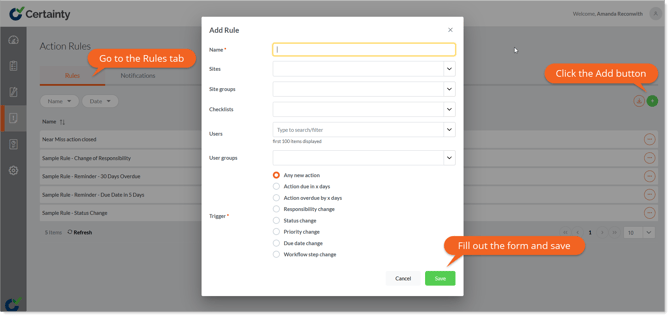
Trigger options:
- ‘Any New Action’ - this rule will be triggered every time a new action (at the site(s) and for the checklist(s) chosen above) is created.
- ‘Action Due in X Days’ or ‘Action Overdue by X Days’ you will be given the option to define the number of days ‘X’ should be.
- Any of the options that relate to ‘Change’ such as ‘Responsibility Change’ means the rule will be triggered when the action is changed.
- ‘Workflow Step change’ means the rule will be triggered when a checklist moves from one workflow step to another.
Once you have defined a rule, the second step is to define the notification to be sent when the rule is triggered.
Creating a notification email for Actions
An action notification is an email with a custom message sent to specific users or user groups when triggered by a rule. You must create a rule and attach it to your notification record for the email to be sent.
To create an automatic notification email for actions:
- Navigate to ‘Manage Actions - Action Rules’.
- Click the ‘Automatic Notification’ tab.
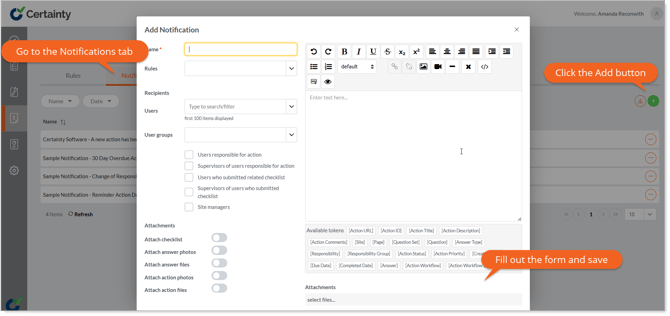
- Click the green ‘Add’ button at the top right of the rules table to open the ‘Add Automatic Notifications’ form.
- Add a notification name. This should reflect the reason the notification was sent – for example, ‘Overdue Action – Action Required’. This will be the subject line of the email sent.
- Choose the rule (previously created) that will trigger the notification. In our example we have chosen our previously created rule ‘Overdue Action’.
- Choose the recipients of the email.
- You can select users or user groups or use the tick box options to decide who to send the notification to.
- Determine (tick) if you would like a copy of the completed checklist that triggered the notification to be attached to the email notification.
- Define the content of the email message and add any ‘tokens’ you wish the message to have. Examples include [Action URL], [Action ID], [Action Title], etc. If you would like to include any or all these tokens in your message, type the token name in [square brackets] just as you see them.
- Format your message (using the formatting tools). There are a range of standard formatting options, and you can also include images, videos and links.
- Attach any files (PDF, images, documents, etc.) you want to include in the notification email.
- Click ‘Save’.
The recipients you selected will now get the email you specified if the rule you attached is triggered.
Notes
- Notifications are sent according to rules, and you should create a rule before you can create a notification.
- Action notifications will only be sent if an ‘Automatic Notification’ is also added and linked to a rule.
- Users must have an email address included in their Certainty user profile to receive email notifications.