
Adding, editing and deleting action types
Action types are used to label and organize actions in Certainty. You can add or edit action types in ‘Manage Actions – Actions’.
Action types are classifications of actions required by auditors such as ‘Corrective’ or ‘Preventive’ and any additional types you add yourself in Manage Actions – Action Types. They appear in the ‘Add/Edit Action’ form in the Mobile App and Admin Portal.
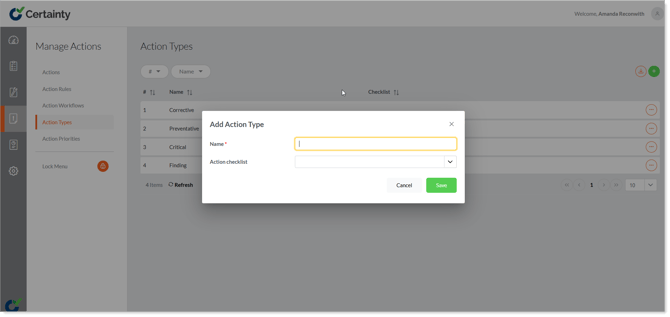
To add an action type:
- Go to ‘Manage Actions – Action Types’ to open the ‘Action Types’ table.
- Click on the green 'Add' button to open the ‘Add ‘Action Type’ form.
- Give the the action type a descriptive name.
- Select any custom action forms (action checklists) you would like to associate with this action type.
- Click ‘Save’.
To edit an action type:
- Go to ‘Manage Actions – Action Types’ to open the ‘Action Types’ table.
- Find the row of the action type you want to edit and click on the ‘Options’ menu on the right side of the row.
- Select ‘Edit’ top open the ‘Edit Action Type’ form.
- Change the name and any associated action checklists.
- Click ‘Save’.
To delete an action type:
- Go to ‘Manage Actions – Action Types’ to open the action types table.
- Find the row of the action type you want to delete and click on the ‘Options’ menu on the right side of the row.
- Select ‘Delete’.
- Confirm that you want to delete the record.
Notes
-
Action types can be used to trigger a custom action form to open when Mobile App users add Actions during Audits.
- If actions are associated with an action type you are not able to delete it.