
Enabling AI Vision for a checklist
AI Vision can be enabled in 'Manage Checklists - Checklists & Checklist Groups - Checklists' to help Mobile App users complete checklists by analyzing images and files.
- Go to 'Manage Checklists - Checklists & Checklist Groups - Checklists' and click on the row of the checklist you would like to enable AI Vision for.
- In 'Options', select 'Edit' to open the 'Edit checklist' form.
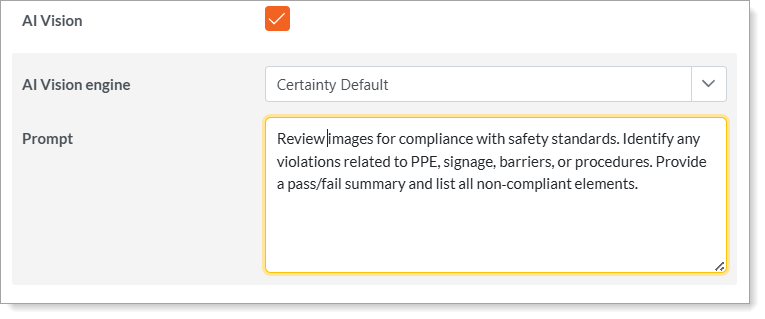
- In the AI settings section, check the 'AI Vision' box.
- Make sure to select an engine for AI Vision and enter a prompt.
- Once enabled for the checklist, you can enable AI Vision at page, question set and question level.
- Save and publish your checklist.
Notes
-
- A prompt refers to instructions that you would like the AI Vision to keep in mind while analyzing photos and answering the questions. The prompt should be concise and can be entered at checklist, page, question set and question level.
- AI Vision must be enabled for least one page, question set or question to be used in the Mobile App.
Learn this next...
How do I use AI Vision in the Mobile App?