
Adding new answer types and answer options to a Checklist
Once you have added question(s) to your checklist you can define the available answer information (answer type, answer options and answer score - if applicable).
To determine how a question can be answered in the Mobile App, you need to define both ‘Answer Type’ (i.e. text, radio buttons, dropdown list, etc.) and ‘Answer Options’ (i.e. the different options available to Mobile App users to select an answer from).
Answer options only need to be defined when questions have multiple options for a user to choose from (dropdown list, radio button, and multi select checkboxes). If you select ‘single line text’ or ‘bar code/QR code’ or any other answer type that does not have several choices for the Mobile App user, you do not have to define any answer options.
Answer options do not need to be defined for answer types like:
- Text (Single Line)
- Text (Multiline)
- Numeric
- Date
- Time
- Signature
- GPS Coordinates
- Barcode/QR Code
To add and remove answer type information:
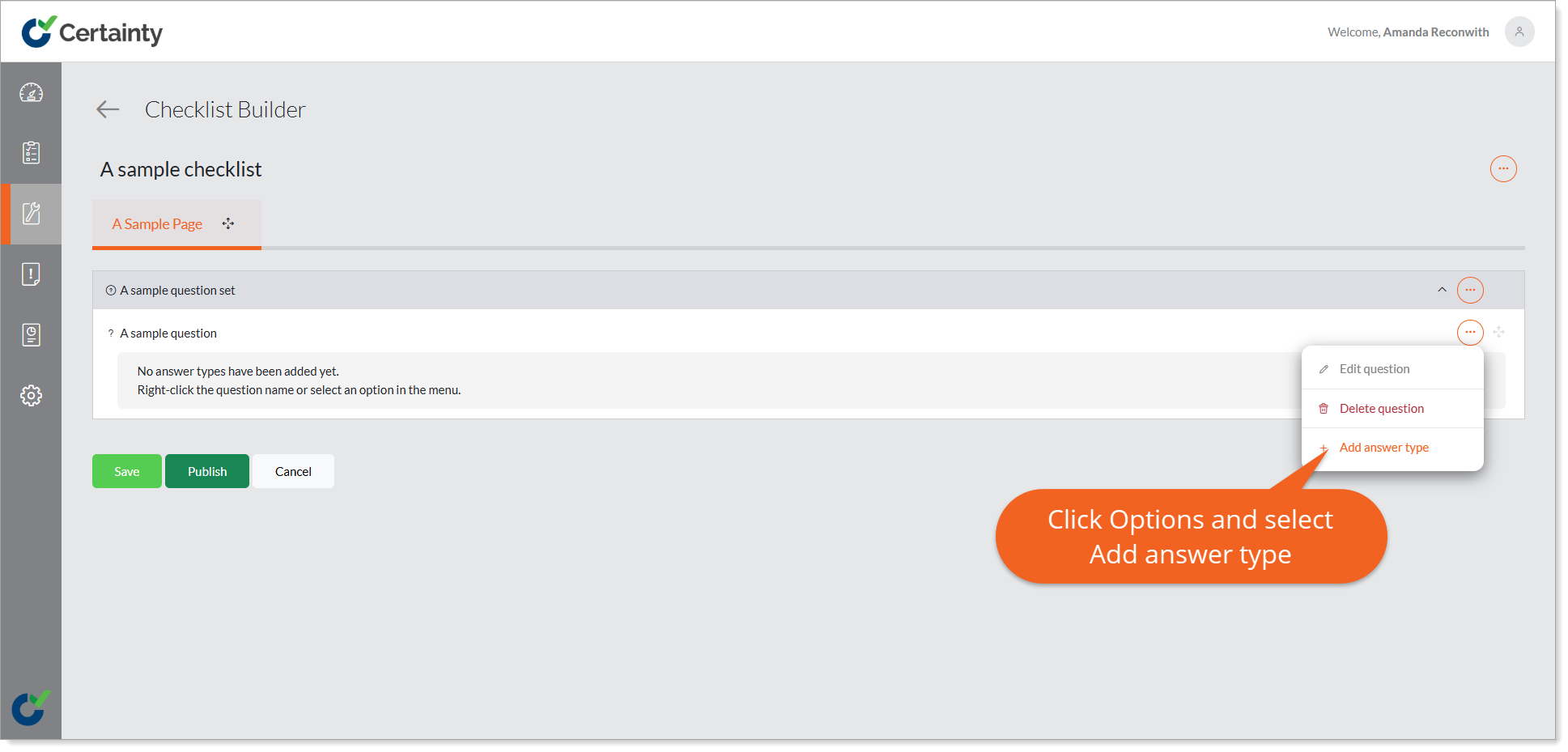
- Right mouse click on the question you are defining answer information for or click ‘Options’ to the right of the question and select ‘Add answer type’ to open the ‘Add Answer Type’ form.
- Give the answer type a name and set the properties.
- If you select an answer type that can have many answer options, you can add these by clicking the ‘Add Answer Option’ button. Here you can also decide if:
- An answer option should be scored and what the score should be for each option (Score).
- Which answer option should be pre-selected for a Mobile App user answering the question (Default).
- If any of the answer options should cause the whole checklist to fail (‘Critical fail’) if selected.
- You can remove answer options by clicking the trash can next to them.
- Click ‘Save’.
- You will return to the ‘Checklist Builder’ main page.
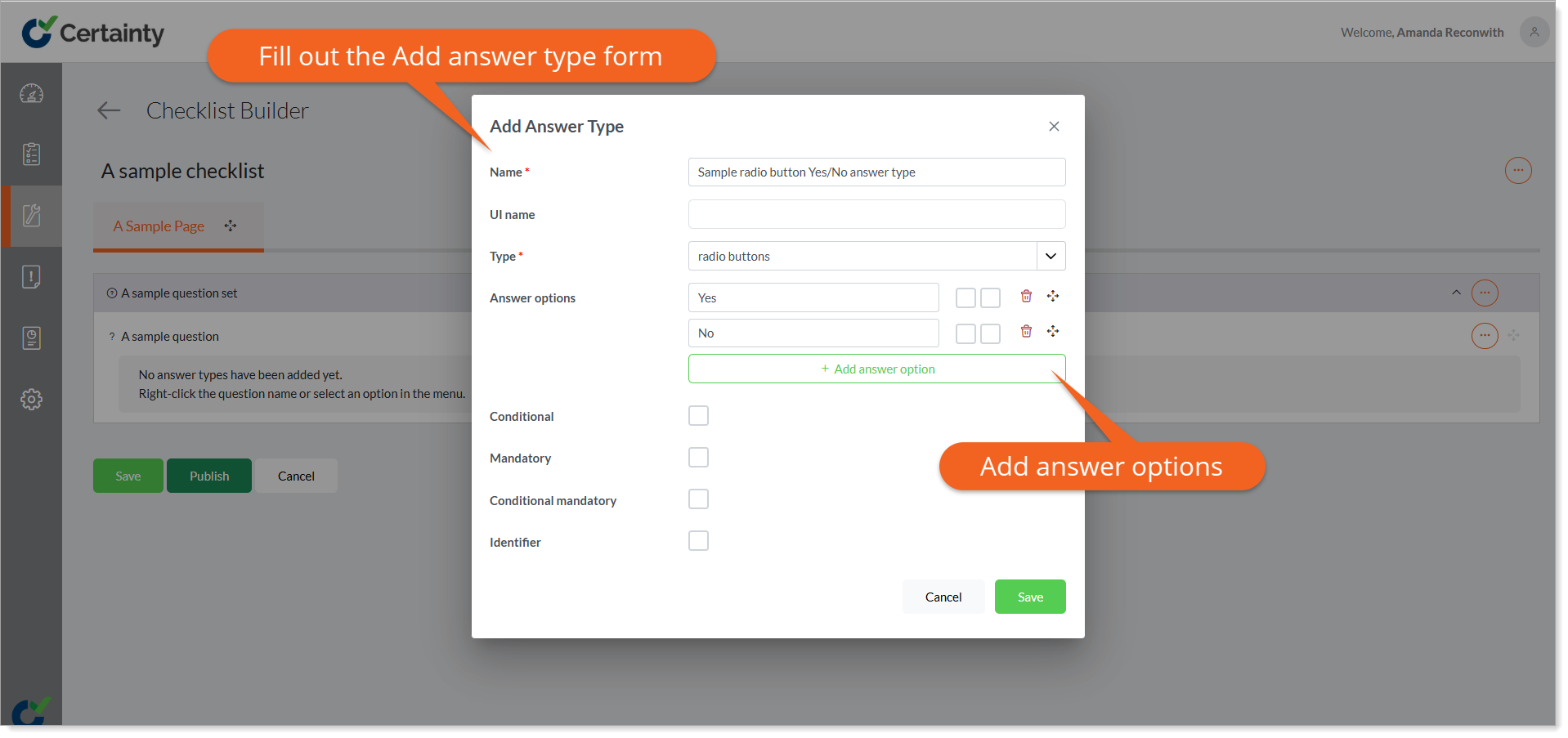
‘Add Answer Type’ form explained:
Name: This is the name you give to the entire set of options the Mobile App user can select from. The name itself is not visible to Mobile App users completing the checklists. For example, if the answer options are ‘Yes’ and ‘No’ and you intend for this to be a set of radio buttons, then you could call this answer type ‘Yes/No radio buttons’. Answer type names are only important to users in the Admin Portal and should indicate the options available and the type of field to make it easy for administrators to find and reuse answer types.
UI Name: The user interface (UI) name is optional, and you only need to fill this out if you want Mobile App users to see specific information for this set of answer options. This isn’t always necessary as the question name (e.g. ‘Are all employees wearing required PPE?’) and the answer options themselves (e.g. ‘Yes’ and ‘No’) is sufficient in most cases. You could however add a UI name as well (e.g. ‘Please select all of the following options that apply’) if that would help Mobile App users answer the question correctly.
Type: Defines the type of answer the user will see. Answer types include:
- Checkbox (single) – single selection only
- Dropdown – dropdown list
- Radio buttons – single selection only
- Text (Single line) – single line text answers
- Text (Multiline) – multi line text answers
- Numeric – only allows numerical answers
- Date – calendar date picker
- Time – clock time picker
- Checkbox (multiple) – allows for multiple selections
- Signature – provides a field for a signature
- Users – displays a list of all users within a user group
- GPS Coordinates – records the latitude and longitude of the user’s current location
- Bar Code/QR Code – allows the user’s device to scan most barcodes or QR codes
- Likert Scale – defines a sliding scale of options for a user to choose from
- Star Rating – number of stars the user can assign as an answer to a question
- Radio Button with Pictures – single selection only and the same as radio buttons but answers are represented by pictures instead of text
Answer Options: If you select an answer type that can have many answer options, you can add these by clicking the ‘Add Answer Option’ button. Here you can also decide if:
- An answer option should be scored and what the score should be for each option (Score).
- Which answer option should be pre-selected for a Mobile App user answering the checklist (Default).
- Any of the answer options should cause the whole checklist to fail (‘Critical fail’).
- You can remove answer options by clicking the trash can next to them.
Conditional: Makes this a conditional answer type (IF x THEN y).
Mandatory: Users will not be able to save a checklist unless all mandatory questions have been answered.
Conditional Mandatory: Allows answer to only be mandatory when certain other conditions are met.
Identifier: This field provides a quick and easy way to identify all completed checklists related to a certain answer.
Question set identifier: Like ‘Identifier’ but for a Question set. The option only shows up if the question set parent is repeatable and the identifier is one of the questions in the question set.
Learn this next...
How do I use conditional questions, conditional answers & conditional mandatory answers?