
Adding files and images to actions
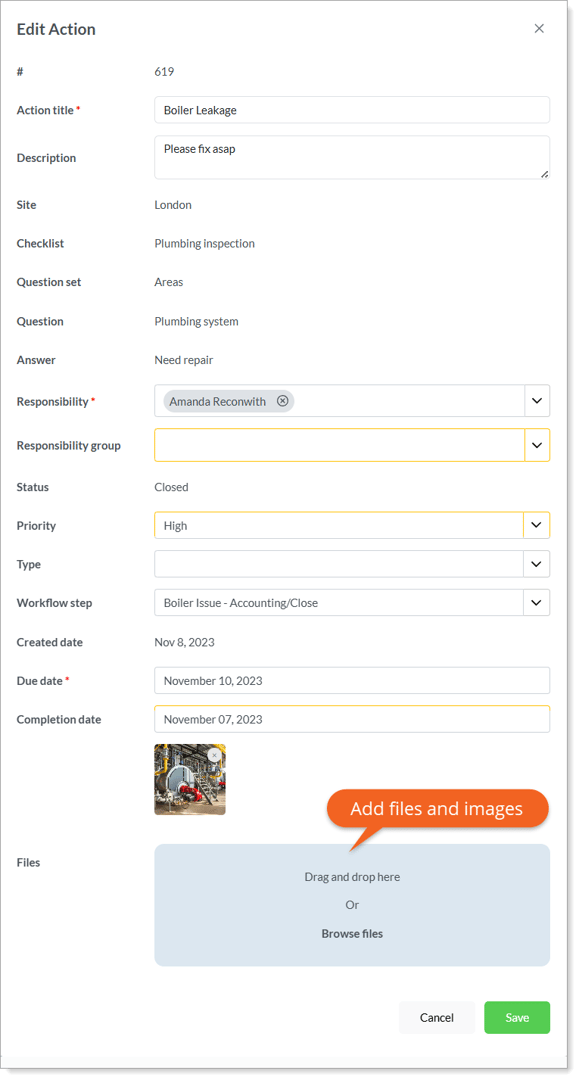
You can attach files and images to your actions and view them in ‘Manage Actions – Actions’. Mobile App users with access to Actions will also be able to see the files and images you add.
To add files & images to actions:
- Go to ‘Manage Actions – Actions’.
- Find the action you want to edit.
- Click the ‘Options’ button on the right side of the row to open the ‘Edit Action’ form.
- In the ‘Files’ field, drag and drop or browse to the file or image and add it.
- Click ‘Save’.
Notes
- If an action has files or images attached, the ‘File’ icon will be highlighted when you view the action in the table. Click the highlighted ‘File’ icon to view any attached files or images.