
Adding a new page to a Checklist
Once you have created the checklist, you can add pages to it. A checklist must have at least one page.
To add a page to a checklist:
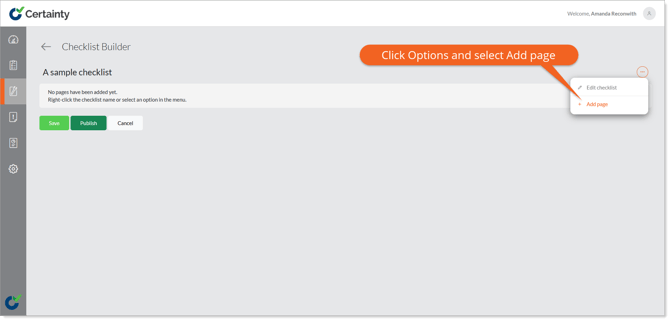
- Right click the checklist name or click the ‘Options’ button to the right of the name and select ‘Add page’ to open the ‘Add page’ form.
- Give the page a name and set the page properties.
- Click ‘Save’.
- You will return to the ‘Checklist Builder’ main page and you can proceed to add the first question set.
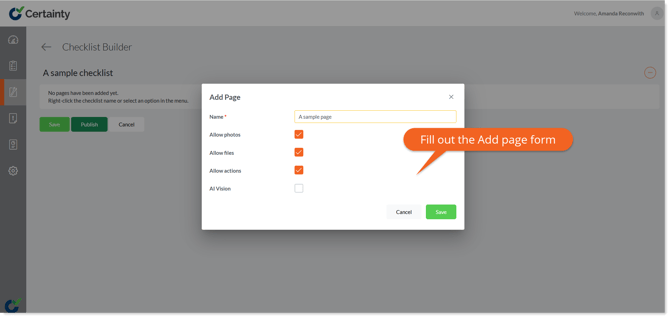
‘Add page’ form explained:
Name: The name of the page as it will appear to Mobile App users.
Weighting: Allows a page to have a weighted score in relation to other pages. Use this field to define what weight (multiplier) this page will have. Weighting is a simple multiplier of the total score of the page. A page with a weighting of 2 will have a score value twice that of the total score for all question sets, questions and answers on that page.
Allow Photos/Files: Defines if Mobile App users completing a checklist can add photos or files to the questions within that page.
Allow Actions: Defines if Mobile App users completing a checklist can add actions to the questions within that page.
Learn this next...
How do I add a new question set to a Checklist in the Admin Portal?