
Adding a new question set to a Checklist
Once you have added pages to your checklist, you can start adding question sets. These are questions grouped together.
To add a question set to a page:
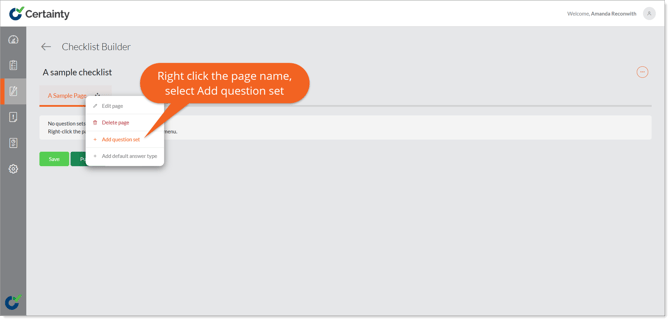
- Right click the page name or click the ‘Options’ button to the right of the name and select ‘Add question set’ to open the form.
- Give the question set a name and set the properties.
- Click ‘Save’.
- You will return to the ‘Checklist Builder’ main page and you can proceed to add the first question.
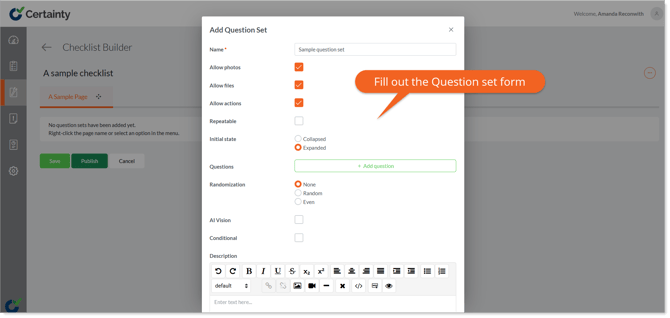
The ‘Add Question Set’ form explained:
Name: The title of the question set as it will appear on the checklist.
Weighting: Allows a question set to have a weighted score in relation to other question sets on that page. Define what weight (multiplier) the question set will have. Weighting is a simple multiplier of the score of that question set. A question set with a weighting of 2 will have a total value twice that
Allow Photos/Files: Defines if Mobile App users completing a checklist can add photos or files to the questions within that question set.
Allow Actions: Defines if Mobile App users completing a checklist can add actions to the questions within that question set.
Repeatable: Allows Mobile App users to repeat the question set so the same question set may be filled out multiple times in one submission.
Initial State: Defines if your question set will be ‘expanded’ or ‘collapsed’ when a Mobile App user first opens it to complete the checklist.
Questions: Questions can be added from the question set form. Click the ‘Add question’ button to add a new question and decide it’s score and if photos, files and actions are allowed for that question (if you previously enabled these options for the checklist in the main details form).
Randomization: To randomize the selection of questions in a question set that appears to a Mobile App user, you have three options – ‘None’, ‘Random’ or ‘Even’.
- ‘None’ is default and if selected all questions will appear.
- ‘Random’ fully randomizes the questions for that question set each time the checklist is answered.
- ‘Even’ will randomize the questions included in that question set each time the checklist is answered but will trend towards an even spread of all possible questions.
- If you select ‘Random’ or ‘Even’, you will be asked how many of the randomized questions in the question set you would like the Mobile App user to see.
Conditional: Makes this question set conditional (IF x THEN y).
AI Vision: Enables AI Vision for the question set allowing Mobile App users to upload files and images for AI analysis to help answering questions.
Tooltip: Information added here will appear to a Mobile App user in a pop up if they tap an ‘Info’ icon next to the question set name in the Mobile App. You can have tooltips for question sets and questions. You can add text, images, links, etc.
Description: Information added here appears to the Mobile App user just below the question set header. You can add text, images, links, etc.
Learn this next...
How do I add a new question to a Checklist in the Admin Portal?