
Adding a new question set to a Checklist
You can add questions from the ‘Question Set’ form or from the main 'Checklist Builder' page.
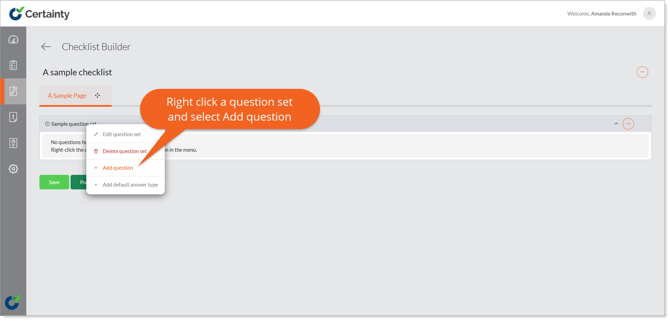
To add a question to a question set from the main checklist builder page:
- Right click a question set name or click the ‘Options’ button to the right of the question set name and select ‘Add question’ to open the ‘Add Question’ form.
- Give the question a name and set the properties.
- Click ‘Save’.
- You will return to the ‘Checklist Builder’ main page and you can proceed to add ‘Answer Types’.
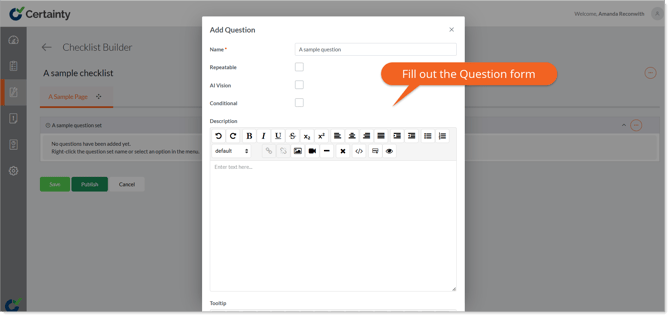
The ‘Add Question’ form explained:
Name: The question text as you would like it to appear to Mobile App users.
Scored: Defines if the question is to be scored.
Allow photos/Photos mandatory: Defines if Mobile App users completing a checklist can and must add photos to the question.
Allow files/files mandatory: Defines if Mobile App users completing a checklist can and must add files to the question.
Repeatable: Defines if users completing a checklist will be able to answer this question multiple times.
AI Vision: Enables AI Vision for the question allowing Mobile App users to upload files and images for AI analysis to help answering questions.
Conditional: Defines if this question is conditional.
Description: Information added here appears to the Mobile App user under the question name. You can add text, images, links, etc.
Tooltip: Information added here will appear to a Mobile App user in a pop up if they tap an ‘Info’ icon next to the question name in the Mobile App. You can add text, images, links, etc.
Learn this next...
How do I add new answer types and answer options to a Checklist in the Admin Portal?