
How do I add actions to a completed checklist answer?
To add an action to a completed checklist answer:
- Go to 'Manage Completed Checklists' and select the 'Completed Checklists' tab. The completed checklist table will open.
- Click the row of the completed checklist you would like to add an action to. The details page for that record will open.
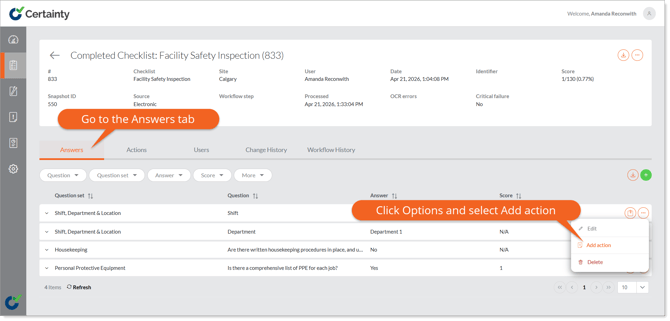
- Go to the lower table and click the ‘Answers’ tab.
- Click the ‘Options’ menu to the right of the answer you would like to add an action to and select 'Add Action'.
- The ‘Add Action’ form will open.
- Fill out the information you would like to add.
- Click ‘Save’
- The action will be added and you can see it under the Actions tab.
Notes
- Actions are added to a completed checklist in the ‘Answers’ tab but the actions that are added to that completed checklist are listed under the ‘Actions’ tab.
- To edit an action that was already added to a completed checklist go to 'Manage Actions' and open the 'Actions' tab.
Learn this next...
How do I link a user to a Completed Checklist in the Admin Portal?