
Generate automatic actions for specific checklist answers
Certainty can automatically create an action and assign it to the right person when a rule is triggered. The automatic action will appear in the ‘Actions’ tab in the checklist details table and it will be available to the responsible Mobile App user.
Because the generation of the automatic action is triggered by a specific checklist answer you set automatic actions up in ‘Manage Checklists - Checklist Rules – Automatic Actions’.
When setting up automatic actions, an Administrator can define:
- the name of that action,
- a description of what is required to rectify/close the action,
- the rule that will trigger the creation of that action,
- the user(s) who will initially be made responsible for the closure of the action,
- the status of the action upon creation (typically ‘Active’),
- the priority of the action (High, Medium, Low), and,
- the due date of the action.
To create an automated action:
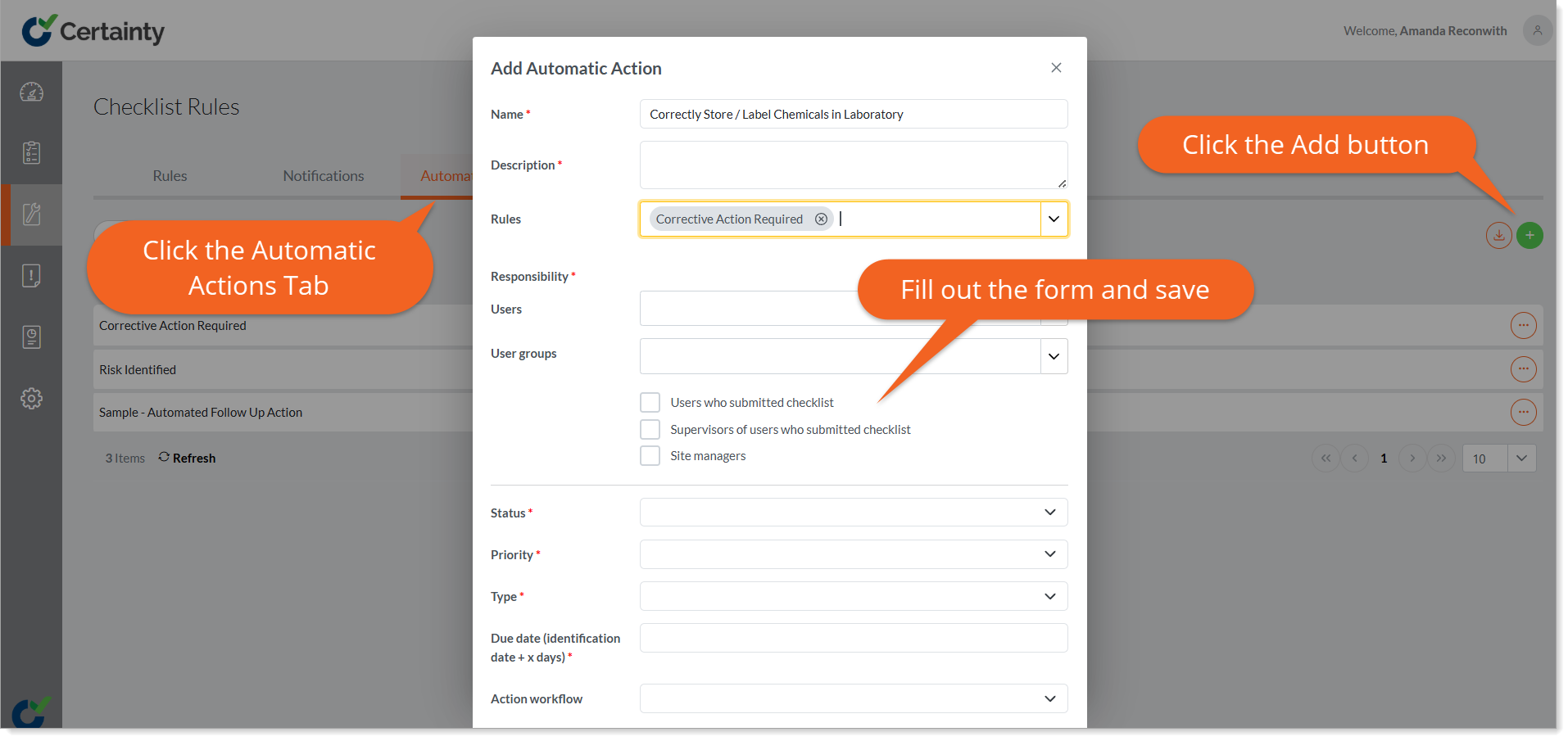
- Go to ‘Checklists & Checklist Groups – Checklist Rules’ and click the ‘Automatic Actions’ tab.
- Click the green ‘Add’ button to open the ‘Add Automatic Action’ form.
- Add an action name. This should reflect the nature of the action itself (e.g. what action is required – for example ‘Correctly Store / Label Chemicals in Laboratory’).
- Choose the rule (previously created) to trigger the creation of the action e.g. a specific answer to an audit or inspection question was submitted by a Mobile App user.
- Choose who will be made responsible for the action. You can have multiple users responsible.
- Determine what status the action will have initially. This will typically be set to ‘Active’.
- Determine the priority and type of the actions created.
- Determine the due date for the actions created. The due date is defined by the number of days after the action is created.
- Select a workflow for the action if applicable.
- Click ‘Save’
Certainty will now automatically create actions when the rule is triggered.
Notes
- Automatic actions are created by rules, and you must create a rule before you can create a notification.
- Users must have Admin Portal access and the ‘Actions – Access or ‘Actions – Edit’ role to be able to view or edit actions in the Admin Portal.