
Creating reusable Checklist Components (pages, question sets, questions, answer types and answer options)
Adding pages, question sets, and questions in ‘Checklist Components’ makes these components available for repeated use when creating checklists.
To add components in ‘Checklist Components’:
- Go to ‘Manage Checklists – Checklist Components’ and select the correct tab.
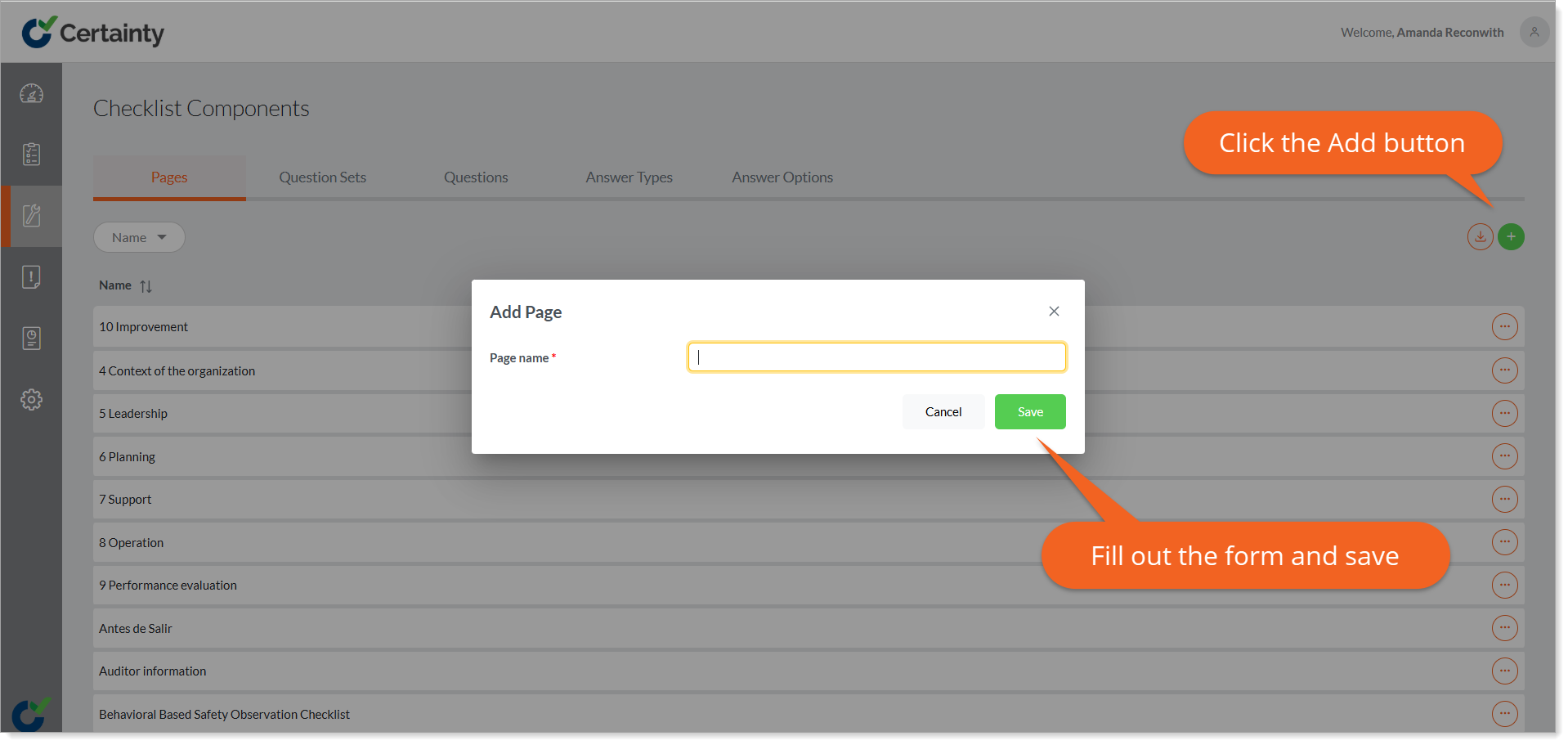
- Click the ‘Add’ button at the top right of the table to open the ‘Add’ form.
- Fill out the form (see articles on how to add Pages, Question Sets, Questions and Answer Types/Answer Options for details about how to do this).
- Click ‘Save’.
You can now use and reuse the component you added when creating checklists in the 'Checklist Builder'. You can also change it across all the checklists using it from ‘Checklist Components’.
In each of the tabs, clicking on an item (page, question set, question, etc.) in the main table, shows more details about that item in a table below. In the example below, clicking on the question set ‘General’ shows all the checklist that include that question set and the questions associated with that question set.
Notes:
-
When adding answer options in ‘Checklist Components’, you can define a default score for that answer option when it is subsequently used in a checklist. Answer scores are optional and can be added and/or edited later using the Checklist Builder.
-
When you define an answer type and the possible answer options it should have, you need to link the necessary answer options to that answer type.
-
To link an answer type to answer options, in the upper grid of the ‘Answer Type’ tab click on the answer type you would like to add answer options to (i.e. ‘Yes / No’). On the ‘Answer Options’ tab, click ‘Link Answer Option’ and add the answer option(s) needed (i.e. ‘Yes’ and ‘No’).
- All checklist elements you add to checklists are also added as ‘Checklist Components’.
- When you edit a component in ‘Checklist Components’ it changes across all checklists that use it. Be careful when editing components here.
- If you have added a component to a specific checklist and would like to change it in that checklist only, edit it from the “Checklist Builder’.
- If you delete an element from a checklist it persists in ‘Checklist Components’. To remove a component you have to delete it from ‘Checklist Components’.