
Creating Checklist Rules
‘Checklist Rules’ in ‘Manage Checklists’ is where you define rules needed to set up email notifications and create automatic actions.
To create rules for checklist email notifications and automatic actions:
- Go to ‘Manage Checklists – Checklist Rules’.
- Click the green ‘Add’ button at the top right of the Rules table to open the ‘Add rule’ form.
- Add a ‘Rule Name’. This should reflect the rule 'Trigger' – for example ‘New audit’).
- Choose the site or site groups you would like this rule to apply to. The rule will then only apply if the audit or inspection was completed at those site(s) or site groups.
- Choose the checklist(s) you would like this rule to apply to. The rule will then only apply to those checklist(s).
- Determine what you would like this rule to be triggered by. Some of the ‘Trigger’ radio buttons will present you with further options if selected.
- Click ‘Save’.
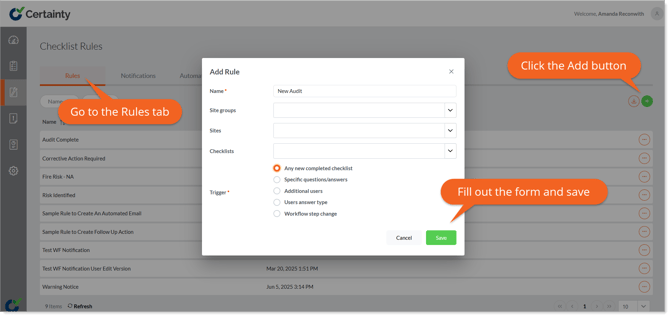
Trigger options:
- ‘Any new completed checklist’ - the rule will be triggered every time a new checklist is started by Mobile App users (at the site(s) and for the checklist(s) chosen above).
- ‘Specific questions/answers ’ - the rule will be triggered every time a specific answer is selected by a Mobile App user when completing a checklist.
- ‘Additional users ’ - the rule will be triggered every time an additional user is added to a checklist by a Mobile App user completing a checklist.
- ‘Users answer type ’ - the rule will be triggered every time a specific user is selected by a Mobile App user in a question with the answer type ‘User’.
- ‘Workflow step’ - the rule will be triggered when a Mobile App user is in the selected workflow step when completing a checklist and you can specify the answer options in that step that will trigger it.
Notes
- If you select ‘Specific questions/answers ’ you must also choose questions and answers that will trigger the rule:
- Prerequisite Answer Options – These are optional.
- If you do not include a prerequisite answer option, then the rule will trigger when the question(s) and answer(s) options you include are selected by Mobile App users.
- If you do include a prerequisite answer option, then the rule will trigger only when both a prerequisite answer option and the question(s), and answer(s) selected below are picked by the Mobile App user.
- Questions - Questions are optional. If you do not include a question, then your rule will trigger in all instances where the answer(s) options you include in your rule are selected by the Mobile App user.
- Answer Options - Answer options are mandatory. You have to select an answer option.
- Workflow Step - If you select ‘Workflow Step’, you will also have the option to enable Specific Questions/Answers. These function like ‘Specific questions/answers ’ but will only trigger on the selected step of the workflow.
Learn this next...
How do I create a Notification email for Checklists in the Admin Portal?