
Creating a notification email for checklists
A checklist notification is an email with a custom message sent to specific users or user groups when triggered by a rule. You must create a rule and attach it to your notification record for the email to be sent.
To create an automatic notification email for checklists:
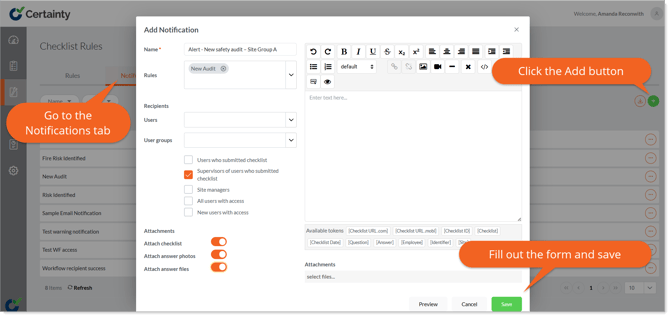
- Go to ‘Manage Checklists' – 'Checklist Rules’.
- Click the ‘Notification’ tab.
- Click the green ‘Add’ button at the top right of the notifications table to open the ‘Add Notifications’ form.
- Add a notification name. This should reflect the reason the notification was sent – for example, ‘Alert - New safety audit – Site Group A’. This will be the subject line of the email sent.
- Choose the rule that will trigger the notification.
- Choose the recipients of the email.
- You can select users or user groups or use the tick box options to decide who to send the notification to. In this case we select ‘Site managers’.
- Write the email message in the large text field and add any ‘Tokens’ you wish the message to include. Examples include [Checklist URL.com], [Checklist URL.mobi], [Checklist ID], etc. If you would like to include any or all these in your message, type the token name in [square brackets] just as you see them.
- Format your message (using the format tools). There are a range of standard formatting options, and you can also include images, videos and links.
- Select any attachments you would like to include in the notification.
- Click ‘Save’.
The recipients you selected will now get the email you specified if the rule you attached is triggered.
Notes
- Notifications are sent according to rules, and you should create a rule before you can create a notification.
- Checklist notifications will only be sent if a ‘Notification’ is also added and linked to a rule.
- Users must have an email address included in their Certainty user profile to receive email notifications.
Learn this next...
How can I automatically generate Actions for specific Checklist answers in the Admin Portal?