
Checklist Schedules – Overview
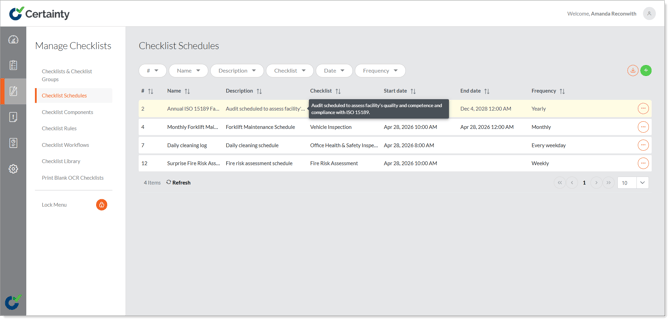
You can schedule audits and inspections in ‘Manage Checklists - Checklist Schedules’. Scheduled events can then be viewed, started and completed by users in the Mobile App.
You can also choose to send immediate notifications and reminders to users about the events they’ve been scheduled to complete. You can set the reminders for specific dates, or days/hours relative to the scheduled checklist time.
Schedule Statuses
Scheduled submissions will be marked with one of the following statuses in relation to the due date:
- Scheduled: Scheduled Events that are scheduled and have not yet reached their due date will be labeled as ‘Scheduled’. This status indicates that these events are on track and within the planned timeframe.
- Overdue: Scheduled Events that have passed their due date without being completed will be marked as ‘Overdue’. This status serves as a clear indicator that these events require immediate attention. These events do however still fall within the events availability timeframe and can still be completed to avoid any delays or potential compliance issues.
- Completed: Scheduled Events that have been successfully finished will be designated as ‘Completed’. This status confirms that the scheduled event has been fulfilled as planned.
- In Progress: Scheduled Events that are actively being worked on or are in the process of completion will be marked as ‘In Progress’. This status allows for easy identification of submissions that are currently being addressed but have not yet reached the completion stage.
- Missed: Scheduled Events that were not completed by their due date, and are also no longer within the availability timeframe, will be classified as ‘Missed’. Once and event has reached this status, it can no longer be completed and will remain as ‘Missed’.
Schedule frequency options
Scheduled checklists have different frequency options:
- Once
- Daily
- Every Weekday
- Weekly
- Monthly
- Yearly
- Selected Dates
If you choose 'Weekly' frequency, you can select multiple days per weeks for scheduling, allowing for increased flexibility in planning and execution:
You can select specific dates if 'Selected Dates' is chosen as the frequency.
Schedule event distribution
Schedules can be randomized by site and/or user. This feature is available while creating a schedule and can be chosen once sites and users have been selected. A few options are available for each: ‘Random’ which will fully randomize which user or site is chosen at each scheduled interval, or ‘Even’ which will randomly choose a site or user but will choose every site or user once before choosing another site or user. You can also select 'All users must complete event' which will create a single schedule and assign it to multiple users, who will each independently be required to complete the event.