
Deleting completed checklists and answers
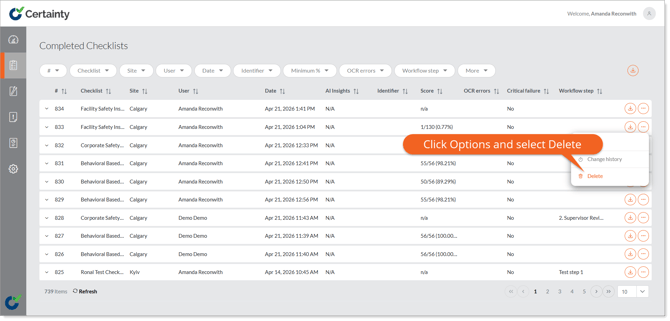
To delete an entire completed checklist:
- Go to 'Manage Completed Checklists' and select the 'Completed Checklists' tab. The completed checklist table will open.
- In the completed checklists table click the 'Options' menu on the right side of the row of the completed checklist you would like to delete.
- Select the ‘Delete’ option.
- Click ‘Yes’ to confirm you are sure in the pop up that appears.
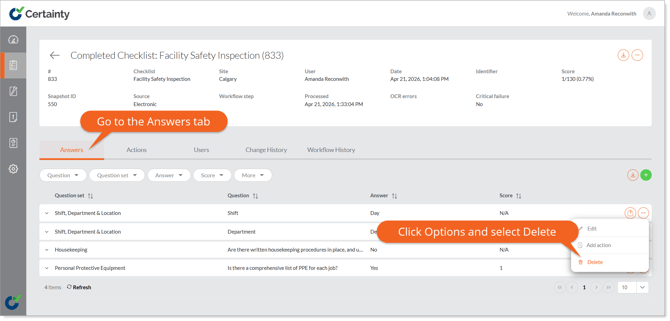
To delete an answer:
- Click the row of the completed checklist where you you would like to delete an answer.
- Go to the 'Answers' tab below the completed checklist details.
- Click the 'Options' menu on the right side of the row of the answer you you would like to delete.
- Select ‘Delete’.
- Click ‘Yes’ to confirm you are sure in the pop up that appears.
Notes
Important! When you delete a completed checklist or answers, they are gone – permanently – so be sure you know what you are doing!