
Adding actions
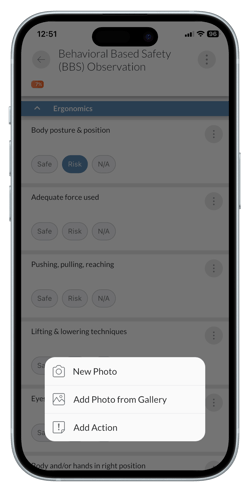
When answering a question in a checklist, tap the 'Options' menu to the right of the question title.
-
Tap 'Add Action'.
-
If more than one action workflow has been configured by your administrator you may have to select the applicable workflow.
-
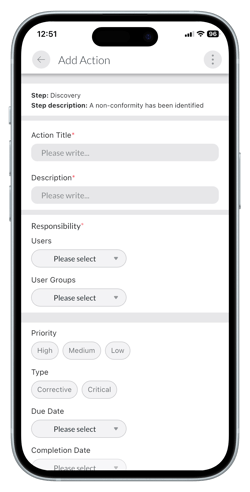
The 'Add Action' screen will open.
-
Fill out the details of the action.
-
Add comments as required.
-
Tap 'Save'.
Adding comments to actions
-
In the 'Action', tap the 'Options' menu at the top right on the screen.
-
Tap 'Comments'.
-
If there are previous comments a red dot will appear next to the 'Comments' option.
-
A pop up will appear.
-
Fill out the comment.
-
Tap the paper airplane icon to save.
Learn this next...
How do I view and edit actions in the Mobile App?
How do I allow Mobile App users to add Actions during audits and inspections?