
Adding a new Checklist
You can add new checklists in the Admin Portal in ‘Manage Checklists – Checklists & Checklist Groups – Checklists’.
To create a new checklist:
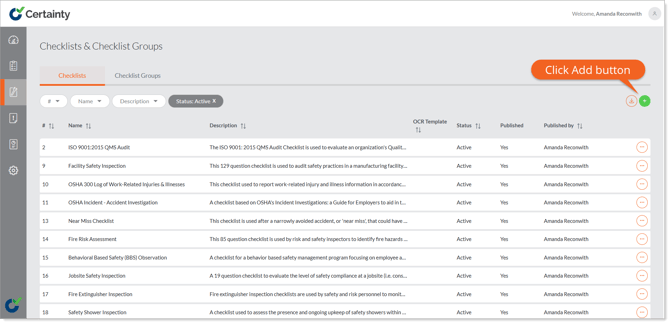
- Go to ‘Manage Checklists - Checklists & Checklist Groups – Checklists’ to open the checklist table.
- Click the green ‘Add’ button at the top right of the screen to open the ‘Add Checklist’ form.
- Fill out the form.
- Click ‘Save’
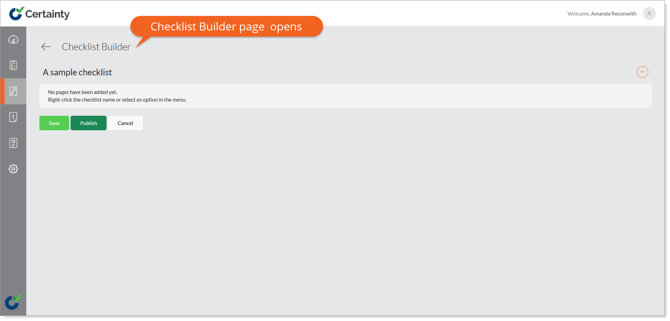
- The ‘Checklist Builder’ main page will open and you can start configuring your checklist by adding the first ‘Page’.
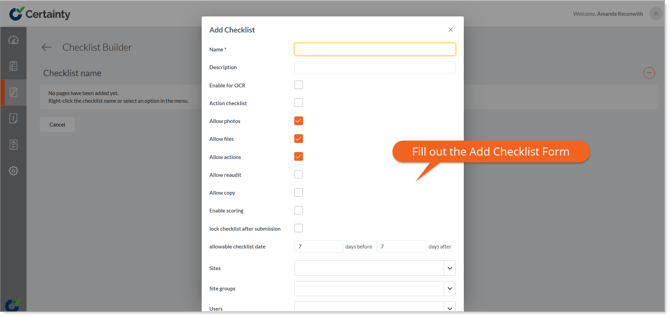
The ‘Add Checklist’ form explained:
Name: The checklist name as it will appear to both Admin Portal Users and Mobile App users.
Description: This information does not appear to the Mobile App user, only to Admin Portal users.
Enable for OCR: Defines that a paper (scan-to-email) checklist can be used to gather data. If you want to use paper-based checklists, choose ‘Yes’ and you will need to choose the template to base your checklist on. Templates are created by the Certainty team based on your requirements and will appear in the Template dropdown. You can not enable the OCR (Paper to Data) feature after a checklist has been created without OCR enabled.
Allow Photos/Files: Allows Mobile App users to add photos or files to the checklist when they complete it. If you want to allow photos or files at a page, question set or question level, they must be enabled here for the checklist as a whole.
Allow Actions: Allows Mobile App users to add actions ‘on-the-fly’ as they are completing checklists.
Allow reaudit: If you check this option there will be an option in the Mobile App for users starting a checklist to ‘Reaudit’. The checklist will then appear as if they started it from scratch, but previous answers will be available to view as they complete the checklist.
Allow Copy: If you check this option there will be an option in the Mobile App for users starting a checklist to ‘Copy’. The checklist will then appear with any previous answers already selected or filled out when they complete it.
Enable Scoring: Adds scoring options to question sets and questions.
Initial Score: 'Initial Score' can be used to set an initial score that answers with negative score values subtract from.
Lock start date: Prevents Mobile App users from changing the date and time an audit or inspection was started.
Allow start date change: Restricts Mobile App users ability to change the date and time an audit or inspection was started to only within the allowed dates (counted from the schedule date).
Sites/Site Groups: Defines which sites/site groups the checklist will be available at in the Mobile App when published. You can also link a checklist to sites or site groups in ‘Administration - Sites & Site Groups’ after the checklist has been created.
Users/User Groups: Allows only the selected Mobile App users who have access to the sites selected above to complete the checklist. If both the ‘Users’ and ‘User Groups’ fields are left blank, the checklist becomes available to ‘All Users’ with Mobile App access to the sites selected above.
Allow Additional Users: Allows Mobile App users to share checklists with other Mobile App users by adding them after starting an audit or inspection.
Checklist Groups: Primarily used to sort and organize checklists and does not restrict site or user access to checklists in any way.
Checklist Workflow: Associates the checklist with one or more checklist workflows (chosen by the Mobile App user when starting the checklist).
Checklist Logo: Uploads an image that will appear as the logo when downloading the Completed Checklist PDF of this checklist.
Checklist Reports: Associates the checklist with one or more custom reports (if there are any available in ‘Reports - Custom Reports’). Users will then be able to view these reports in ‘Completed Checklists’.
AI Insights: If available in your instance of Certainty and enabled here this feature uses AI to analyze completed checklist results.
AI Vision: If available in your instance of Certainty and enabled here this feature allows Mobile App users to use AI to answer checklists questions by uploading images and files for analysis.