
Adding conditional elements to a Checklist
To add a conditional question set, question or answer type to a checklist, add or edit it as normal and tick the ‘Conditional’ checkbox. You can choose if you want to make the answer type conditional by site or by question.
Example - conditional by question:
In this example, we will be using a conditional answer type, but the same methods apply for question sets and questions.
In this case, we want a conditional element to appear only when the Mobile App user selects the ‘No’ answer type in the question 'Was monitoring sufficient at end of shift?'.
-
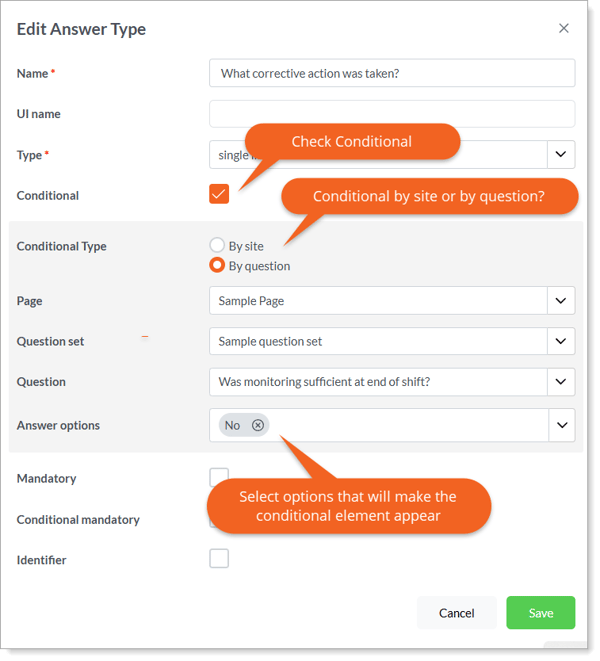
Add the answer type ‘What corrective action was taken?’ (a text field), to the question ‘Was monitoring sufficient at end of shift?’ and tick the ‘Conditional’ checkbox.
-
The question ‘Was monitoring sufficient at end of shift?’ appears in the ‘Sample Page’ under the ‘Sample Question Set’, so we will choose those options for page, question set and question. Lastly, we need to choose the triggering answer option, in this case ‘No’.
-
Save and publish your changes.
- Now if a Mobile App user answers 'Was monitoring at end of shift sufficient? - 'No', they will see the conditional element 'What corrective action was taken?'.
Example - conditional by site:
Question sets, questions, and answer types can be conditional based on the site where a checklist is being completed.
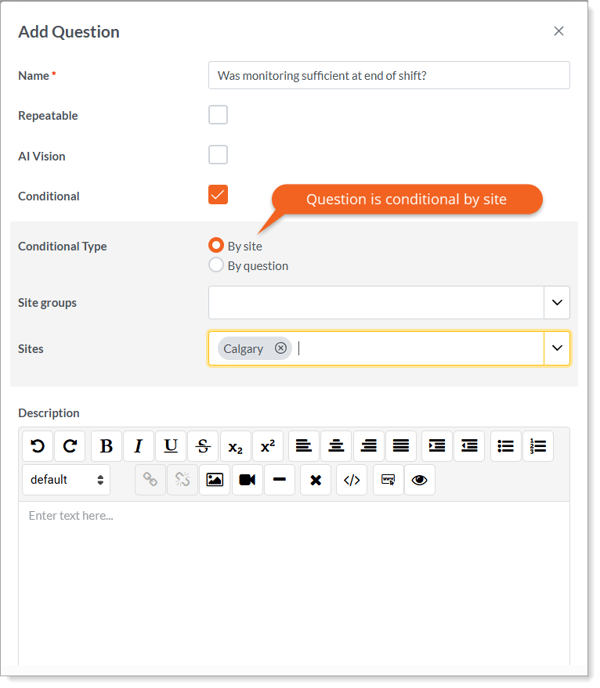
In this case, the question is only relevant at some sites and we want it to appear only when a Mobile App user is completing a checklist for a specific site, in this case 'Calgary'.
-
Add the question ‘Was monitoring sufficient at end of shift?’ and tick the ‘Conditional’ checkbox.
-
Select 'By Site' in the 'Conditional' field.
-
Pick sites and site groups where you'd like the question ‘Was monitoring sufficient at end of shift?’ to appear. We will select 'Calgary'.
-
Save and publish your changes.
- Now only Mobile App users completing this checklist at the 'Calgary' site will see and be able to answer the conditional question ‘Was monitoring sufficient at end of shift?'.
'Elbow' icon = conditional
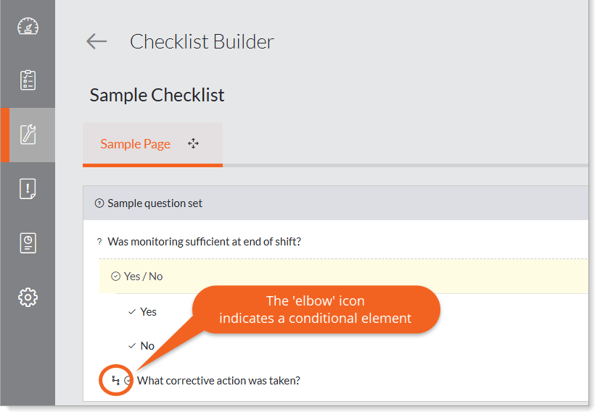
Conditional elements are identified in the 'Checklist Builder' by an elbow icon like in the example below.
Notes
-
You can ONLY trigger conditionals on a preceding answer type, so a question with no answer types is not a valid trigger. Conversely, you CANNOT add conditional questions to questions with answer types that do not have multiple answer options (text boxes, numeric, date, signature).
-
You can add default conditional answer types provided there are existing answer types that have multiple answer options.
Learn this next...
How do I add conditionally mandatory answer options to a Checklist in the Admin Portal?