
Adding a default answer type to a whole Checklist page or question set
When adding answer types and options to pages and question sets, you can add the same answer types/options to all questions in an entire page or question set to avoid having to add the same answer information over and over again. You do this by adding a 'default answer type'.
To add a default answer to all questions in a page or question set:
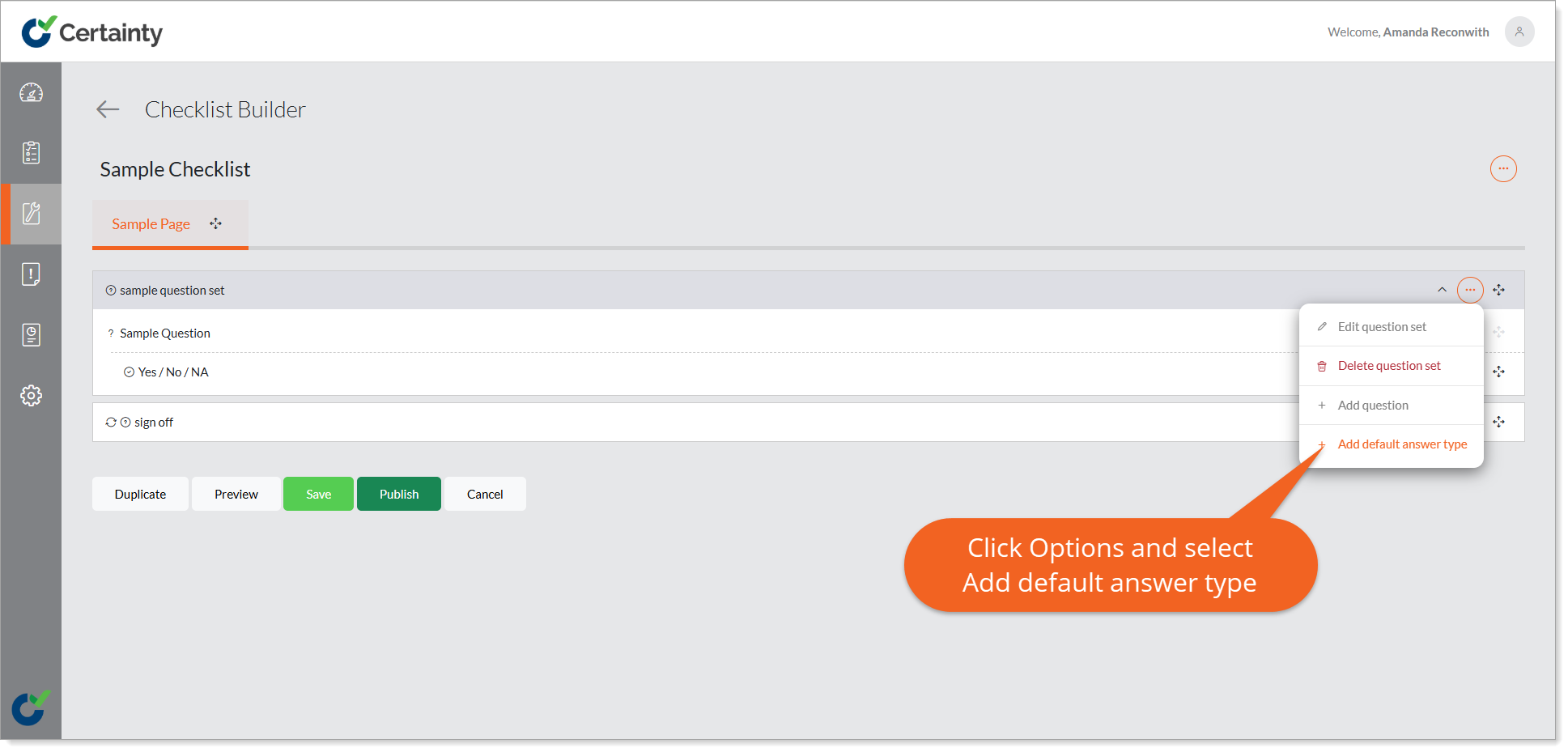
- Right mouse click on the page or question set title or click the ‘Options’ button to the right of the page or question set name and select ‘Add Default Answer Type’ to open the ‘Add Default Answer Type’ form.
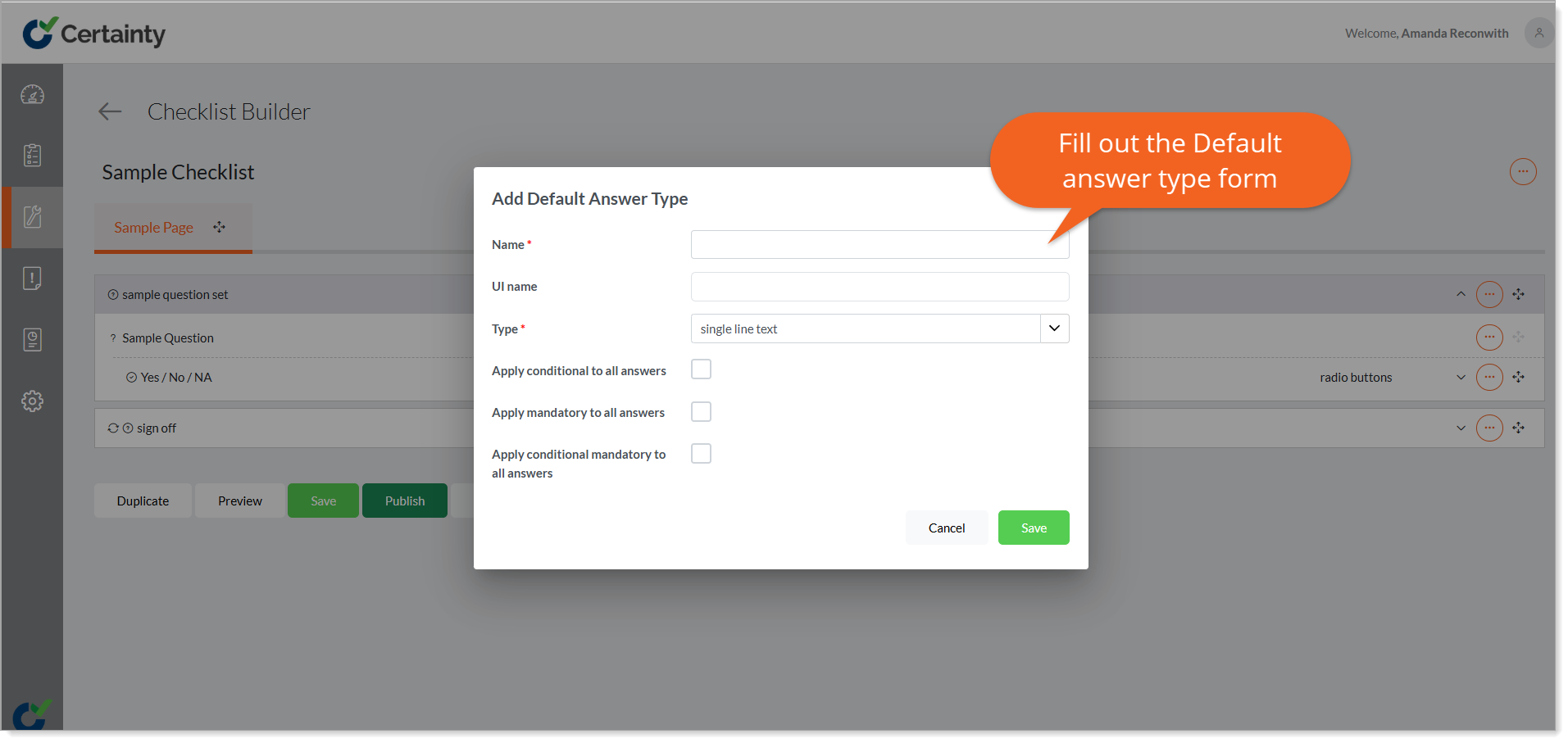
- Give the answer type a name and set the properties that will apply for all answer types in the page or question set.
- Click ‘Save’.
- You will return to the ‘Checklist Builder’ main page.
- The default answer type will appear at the page or question set level and will apply to any questions added below this level.
To delete a default answer type from a page or question set:
- Right mouse click on the default answer type or click the ‘Options’ button.
- Select ‘Delete default answer type’.
- Click ‘Save’.
This will remove it from all questions below the level where it was added.