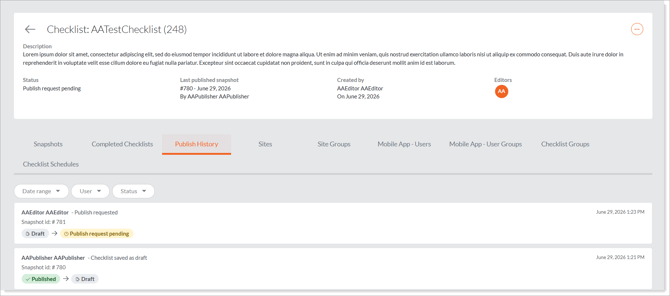
When a colleague who does not have publishing permission requests approval, the publishers they select receive a Checklist Publish Request notification. As an eligible publisher (a user with the Checklists active – Publish role, or an administrator, with access to all of the checklist's sites) you can either publish the checklist or reject the request and send it back to the editor.
How do I know a request is waiting? You'll receive the Checklist Publish Request notification (by email if enabled), and the checklist shows the Publish Request Pending state in the Checklists grid.
Reviewing the request
- In the email requesting your approval, click the link to the checklist or navigate to the checklist in the Admin Portal (Manage Checklists › Checklists). It will be marked Publish Request Pending.
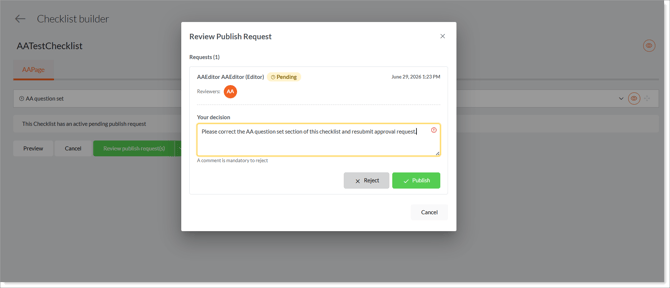
- Review the checklist contents. Because the request is pending, the checklist is locked — it cannot be edited, only viewed, while you decide. Under Review Publish Requests you will see Publish and Reject options.
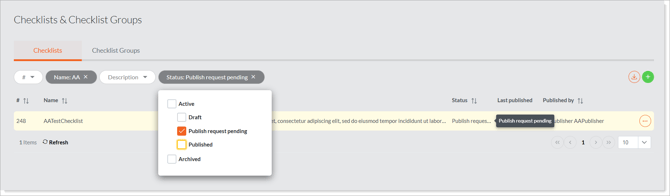
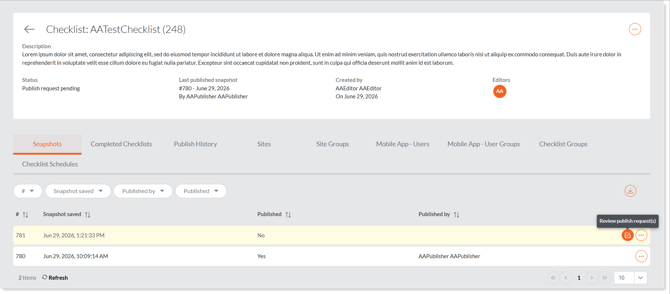
Approving the request (publishing)
- In the email requesting your approval, click the link to the checklist or navigate to the checklist in the Admin Portal (Manage Checklists › Checklists). It will be marked Publish Request Pending.
- Open 'Review Publish Requests' and Click Publish.
- The checklist becomes Published to the Mobile App and is unlocked for editing. The Checklist Published notification is sent to the owner / editor, and the “Published by” and “Published on” details are recorded. It is now available to field users.
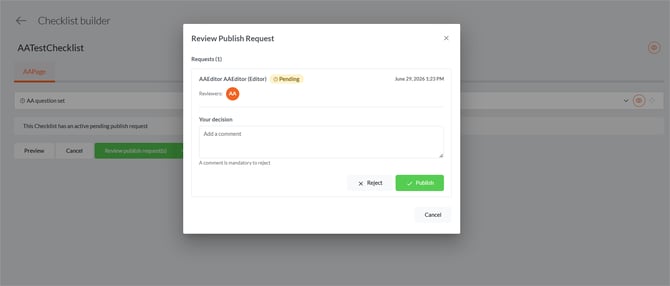
Rejecting the request
- In the email requesting your approval, click the link to the checklist or navigate to the checklist in the Admin Portal (Manage Checklists › Checklists). It will be marked Publish Request Pending.
- Open 'Review Publish Requests' and Click Reject.
- Enter a comment explaining why you are rejecting the request. A comment is mandatory — you cannot reject without one.
- Confirm the rejection. The checklist returns to Draft and is unlocked so the editor can make changes. The Checklist Publish Request Denied notification is sent to the owner / editor, and your comment is visible to the checklist's editors and owners.
Only eligible publishers and administrators can publish, reject, or cancel a pending request. Everyone else is blocked from editing the checklist until the request is resolved.
Reviewing publishing history
Open the checklist and go to the Publish History tab to see the full record: who requested publishing and when, who published or rejected it, any rejection comments, and all status changes.