
Changing your password
1. Open 'Account Settings' by tapping the icon in the top right corner on the screen.
2. Tap 'Change Password'.
3. Enter your activation code.
4. Enter your current password.
5. Enter your new password.
6. Confirm the new password.
7. Tap 'Save'.
Notes
-
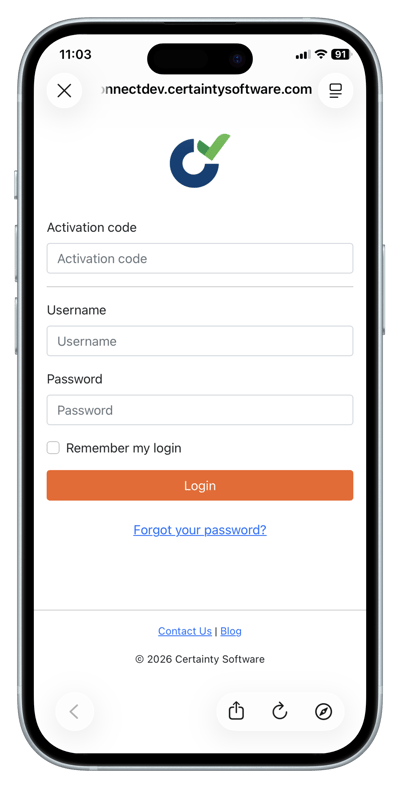
If you cannot log in to change your password, see: How do I log in to the Mobile App?
-
If you forget both your username and password, contact your administrator.
-
Changing your password in the Mobile App also updates it for the Admin Portal.
-
Passwords are case-sensitive.
Learn this next...
How do I change the theme (light, dark or indigo) in the Mobile App?