
Completing a checklist
- Start by tapping the green 'Start' button at the bottom of the screen.
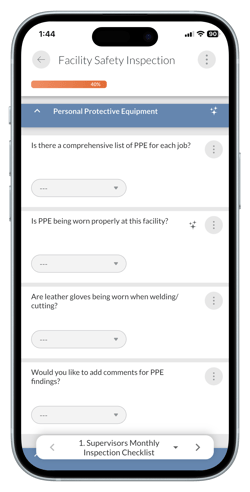
- Answer all the applicable questions.
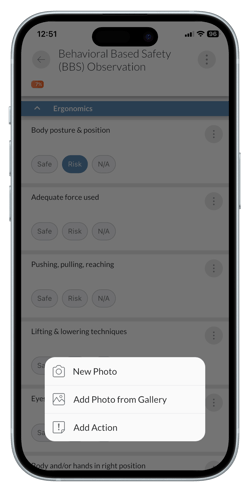
- Add photos, files or comments if needed.
- Add actions or findings if needed.
- Repeat question sets and questions as required.
- At the bottom of the page, either click ‘Save’ or if the checklist has multiple pages, click ‘Next Step’.
- Tap the 'Save & Close' button when finished and the checklist will close.
Adding comments
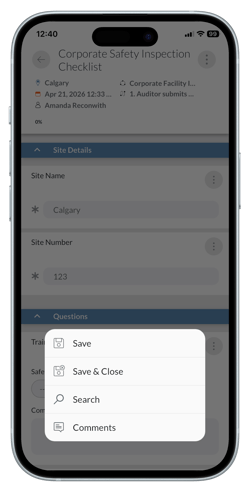
- To add a comment, tap the 'Options' menu at the top right on the screen in the checklist.
- Tap 'Comments'.
- If there are previous comments a red dot will appear next to the 'Comments' option.
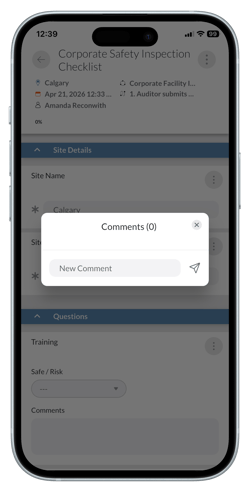
- A pop up will appear where you can add the comment.
- Tap the paper airplane icon to save.
Notes
- You do not have to answer all questions on a checklist you have started. You can return to it later to complete but you MUST click 'Save' at the end of the checklist to save any data you have entered.
- If your checklist follows a workflow you may tap a button called something other than 'Next Step' and 'Save & Close' when you are finished.
- You must answer all mandatory questions (indicated with an *) before you can save or move to the next page of a checklist.
- Click on the 'Info' icon next to a question for additional notes and guidance on how to answer that specific question.
- To add a photo or file to an answer, click on the 'Options' menu to the right of the question. You can either take a photo or select an image from your photo library or select a file. Simply browse to the photo or file and select it.
- To repeat a question set or question tap the 'Options' menu next to the question set or question title. Select 'Repeat Question Set' or 'Repeat Question'. The question set or question will appear again for you to answer a second time. If you change your mind, you can delete the repeated item by tapping the 'Options' menu next to the title and then tapping 'Delete'.
- Using the Mobile App you can complete checklists even if you don’t have an internet connection. Once you are back online you can sync the app to the server by sliding down on the screen.
- Audit and inspection results are available in 'Completed Checklists' in the Admin Portal.
- Files and images added to a checklist are available in the 'Media Library' in the Admin Portal.