
Editing completed checklists
To edit a completed checklist:
- Go to 'Manage Completed Checklists' and select the 'Completed Checklists' tab. The completed checklist table will open.
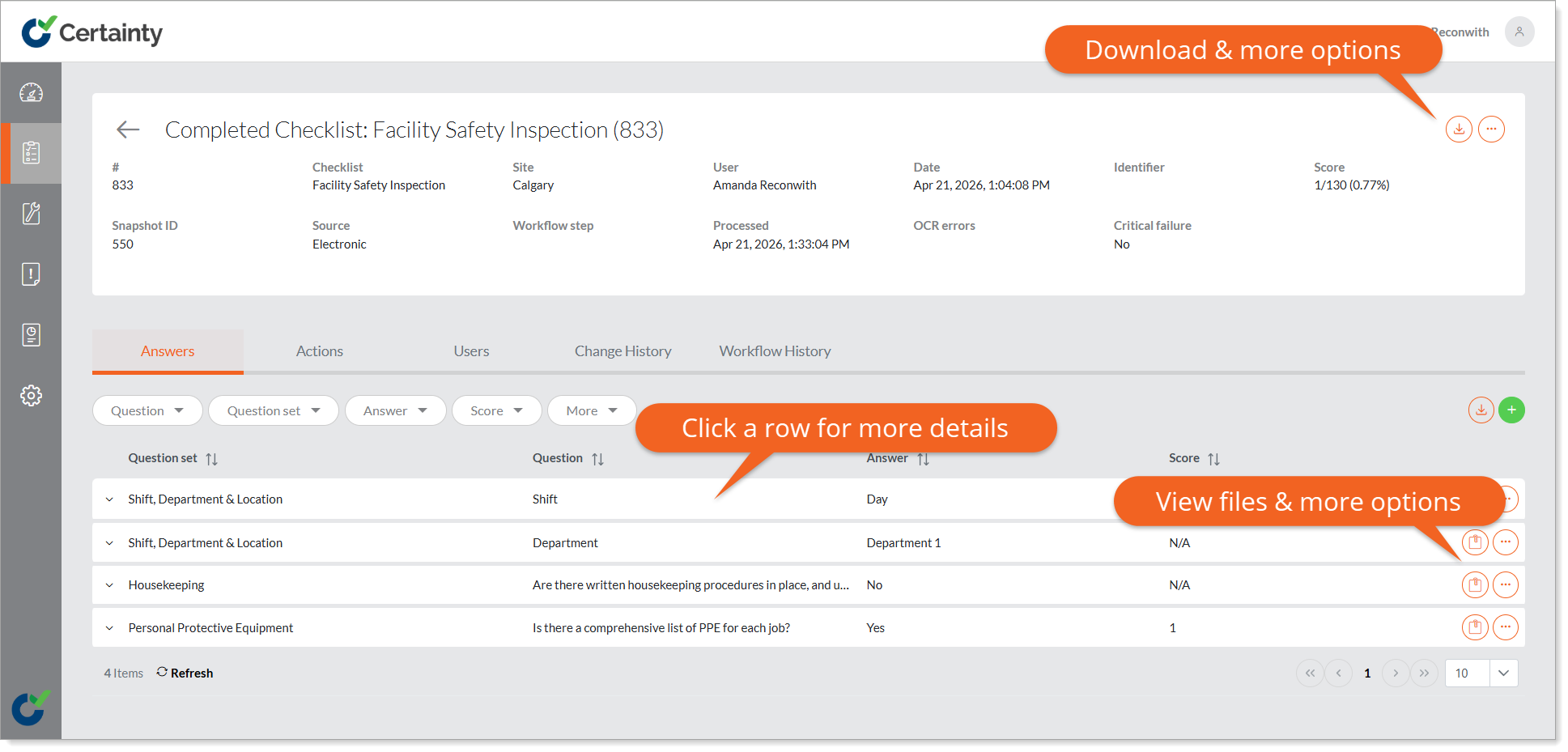
- Click the row of the completed checklist you would like to edit. The details page for that record will open.
- Click the ‘Options’ menu on the top right of the screen to open a pop up.
- Here you will be able to edit the date, site and user who completed the checklists.
- Click ‘Save’
You can edit further details of a completed checklist in the lower table. To do this:
- In the table below the completed checklist details, click the tab you would like to edit. e.g 'Answers'.
- Click ‘Edit’ in the 'Options' menu on the right side of the row of information you would like to change.
- Select ‘Edit’ and change the information in the pop up that appears.
- Click ‘Save’.
Learn this next...
How do I add and edit Completed Checklist Answers in the Admin Portal?