
Finding Actions in the Admin Portal
To find what you are looking for in actions:
- Use the column filters at the top of the record table.
- Click on any of the filter options to open a keyword search field or several search options for the information in that column.
- Type your keywords or set your filter options.
- The table will display only records that match your selected options.
To sort your results by column header:
- Click a column header to sort the table.
- Click again to reverse the sort order.
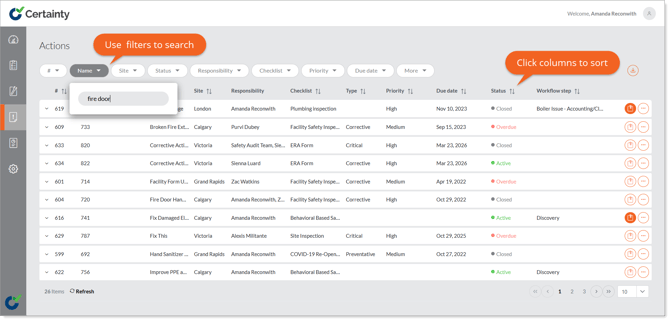
Actions table filters and column headings explained:
# - An auto-generated number allocated to an action when it is added to Certainty. Action numbers are unique and sequentially allocated as actions are added.
Checklist - Completed checklist that contained the question and answer that triggered the creation of the action.
Completed checklist # - Auto-generated checklist ID number allocated to a completed checklist when it is added to Certainty. Completed checklist numbers are unique and allocated sequentially as completed checklists are added.
Question - Question where the answer initiated the creation of the action.
Answer - Actual answer on a completed checklist that caused the creation of the action.
Site - Location or site where the checklist (and question and answer) that caused the creation of the action was completed.
Status - Present status of the action. Actions can be active, overdue or closed.
Created date - Date the action was created and is also the date the completed checklist that caused the creation of the action was submitted to Certainty.
Due date - Date that the action is to be completed/closed.
Completion date - Date the action was completed/closed.
Priority - Priority of the action.
Responsibility - Person or persons responsible for managing the action.
Responsibility group - User group(s) responsible for managing the action.
Created by - User who created the action.
Notes
- Actions can also be viewed in ‘Completed Checklists’ under the completed checklists ‘Actions’ tab.
- Mobile App users can view Actions in the 'Actions' tab in the Mobile App.