
Previewing, publishing and duplicating checklists
You can preview, publish, and duplicate checklists in 'Manage Checklists - Checklists & Checklist Groups - Checklists'.
-
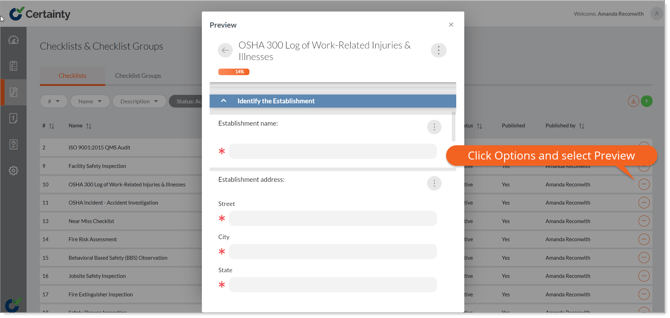
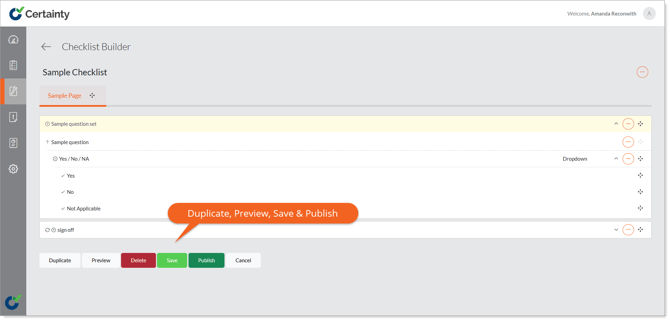
Previewing Checklists: To preview a checklist, click the ‘Preview’ button on the bottom of the main checklist screen after saving the checklist or in the ‘Options’ menu at he top right of the checklist details page. The checklist will open as it will appear in the Mobile App.
-
Publishing Checklists: Before a checklist becomes available for Mobile App users, it must first be published. To publish a checklist, click the ‘Publish’ button on the bottom of the main checklist screen. Publishing a checklist creates a version or a ‘Snapshot’ of it. If you edit a published checklist your changes will not be visible to Mobile App users until you have published it again.
-
Saving Checklists: When you save a checklist, it will create a copy of all new components from the checklist and add them to your component library.
-
Duplicating Checklists: When you click the duplicate button, a new copy of that checklist snapshot will be created.
Learn this next...
How do I make a Checklist available to Mobile App users to start audits and inspections?