
Searching, filtering and sorting completed checklists
To find what you are looking for in 'Completed Checklists':
-
Use the column filters at the top of the record table.
-
Click on any of the filter options to open a keyword search field or several search options for the information in that column.
-
Type your keywords or set your filter options.
-
The table will display only records that match your selected options.
To sort your results by column header:
- Click a column header too sort the table.
- Click again to reverse the sort order.
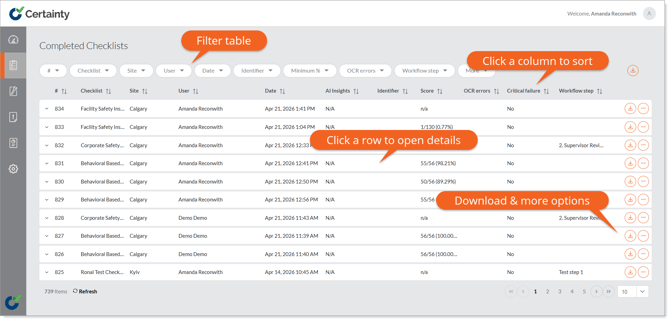
Completed checklist table filters and column headings explained:
# - Auto-generated ID number allocated to a checklist when it is completed in the Mobile App.
Checklist - Name of the checklist completed.
Site - Location or site where the audit or inspection was conducted.
User - Name of the user who completed the audit or inspection.
Date - Date when the audit or inspection was completed.
Date Processed - Date and time the checklist was received and processed in Certainty.
AI Insights - Shows if AI was used to analyze the answers.
Identifier - Shows the information entered into a specific answer option selected as “identifier” within a checklist. Each checklist can only have one identifier and it’s generally unique to each checklist. If no identifier has been indicated, the record will read 'n/a'.
Score - Shows the score for any given checklists. The score is displayed as both a fraction of total points/potential points and a percentage. A checklist that has the scoring option disabled will simply read “n/a”.
Minimum % - Filter used to display any checklists with a score above x %.
Critical failure - Indicates if an answer was submitted that automatically would cause the audit or inspection to fail.
Workflow step - Checklist workflow step when the checklist is currently in.
Source - Only relevant if the source of the data can be either paper (if a paper-based checklist was scanned and emailed to your Certainty instance) or electronic (if the checklist was completed using the Mobile App).
OCR errors - Only relevant to checklist that have been completed on paper and scanned into the Certainty system. The OCR (Optical Character Recognition) errors will display information pertaining to the written information on a scanned checklist, such as “Invalid Date”, “Invalid Site”, or “Invalid User”.
Notes
-
Multiple columns can have search terms applied at the same time to further narrow down your results.
-
The ‘More’ option will offer additional filter options and let you hide the filter options you do not use.