
What are tiles?
When you first log in, the 'Overview' screen will open. Here tiles give you quick access to your most important items, such as:
- Checklists
- Actions
- Scheduled Events
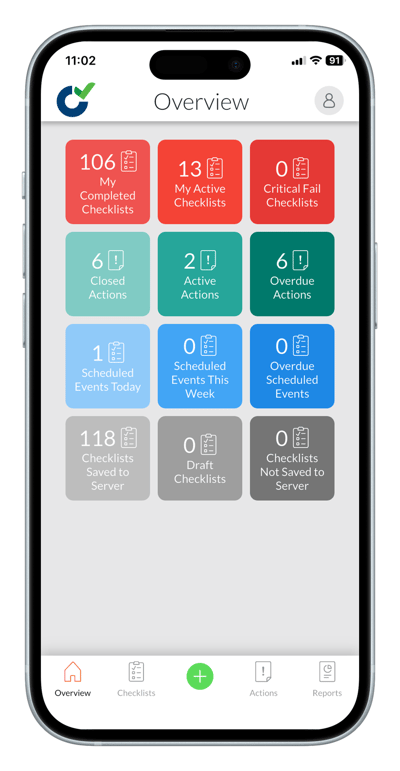
Tiles are specific to individual users and act as shortcuts to filtered lists. Tapping a tile opens the relevant list.
Editing tiles
There is a default set of tiles available when you first log in but you can add and edit tiles.
- Tap and hold a tile.
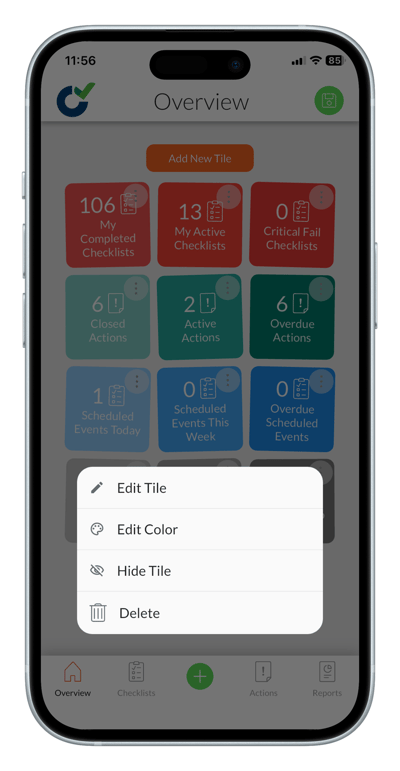
- An 'Add Tile' button will appear and the available tiles will “wiggle" in edit mode.
- Tap the 'Options' menu on any individual tile to open the edit tile menu and change the title, filters, color, hide or delete the tile.
- You can move the tiles around by clicking, holding and dragging them to a new position.
- When you are done tap the green 'Save' icon in the top right corner.
Notes
- Set up tiles for your own responsibilities using filters for 'My Checklists', 'My Actions' and 'Critical Failures' you need to know about.
- The data available in tiles may vary depending on your permissions. What sites, checklists and actions you can access depends on your permissions as determined by your administrator.
-
Tiles do not replace the full lists — they are shortcuts.
- You can always access full lists from the 'Checklists' and 'Actions' tabs.