
Viewing Actions in the Admin Portal
Actions are displayed in rows in the ‘Actions’ record table.
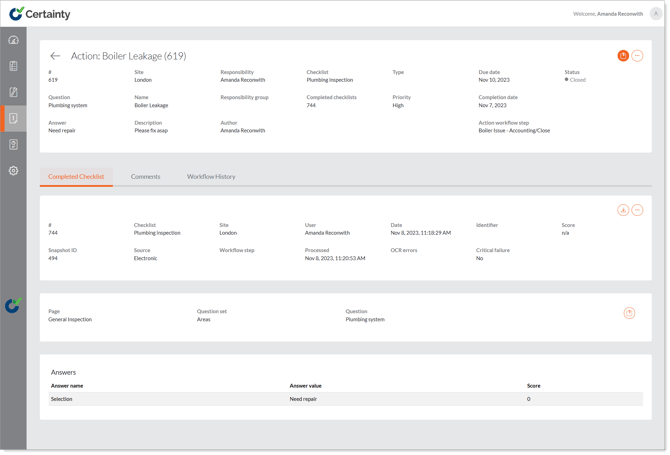
To view details of the completed checklist, page, question set, question and answer the action originated from:
- Go to manage ‘Actions – Actions’.
- Click anywhere in the row of the action you want to view.
- Click the ‘Completed Checklist’ tab in the lower table.
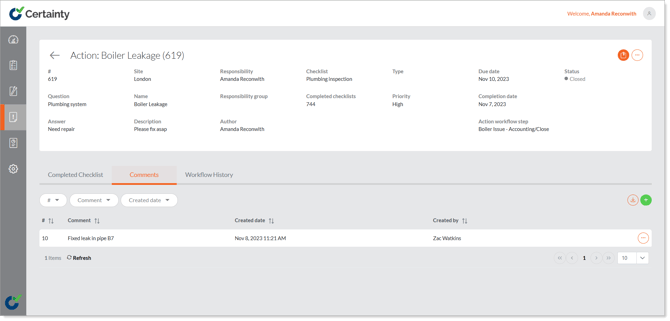
To view comments added to the action:
- Go to ‘Manage Actions – Actions’.
- Click anywhere in the row of the action you want to view.
- Click the ‘Comments’ tab in the lower table.
- Comments added to the completed checklist will appear in the table below.
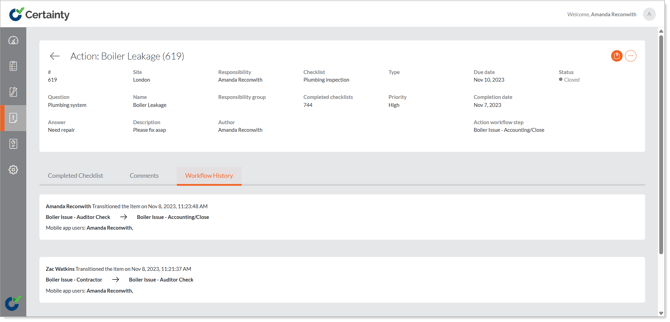
To view the workflow history of an action:
- Go to ‘Manage Actions – Actions’.
- Click anywhere in the row of the action you want to view.
- Click the ‘Workflow History’ tab in the lower table.
- Details of the workflow history will appear in the table below.
Notes
- Actions can also be viewed in ‘Completed Checklists’ under the completed checklists ‘Actions’ tab.
- You cannot edit actions in the completed checklist details table. To edit actions in the Admin Portal, you will need to go to ‘Manage Actions - Actions’.
- If an action has files or images attached the ‘File’ icon will be highlighted when you view the action in the table. Click the highlighted ‘File’ icon to view any attached files or images.