
Checklist ownership/editors and approval of publishing is a gated publishing workflow in Manage Checklists. It makes sure that only authorized users can change, publish new, imported, activated or edited checklists. Until a checklist is published by someone with the right permission, it stays in a Draft (unpublished) state and is not available to Mobile App users.
If you have permission to publish, you can publish a checklist directly. If you do not, you can request publishing approval from a colleague who does. This article explains the roles, states, workflow, locking behavior and notifications that make up the feature.
Who can amend, edit and delete a checklist?
Editing rights is controlled by the 'Checklists active - Edit' role and a users site access to the Admin Portal and who is assigned as 'Editor' to each checklist. A user can change a checklist only when all of the following are true:
- They have the Checklists active – Edit role, and
- They have access to all sites and site groups linked to the checklist.
- They are selected as 'Editor' in the checklist, either individually by name, or indirectly by belonging to a site group assigned editing rights to the checklist.
Administrators can change any checklist regardless of site access, roles or ownership.
Why can I only view, not edit some checklists?
The checklists you can see in Manage Checklists - Checklists are the ones that match your site access in the Admin Portal (as set in Users & User Groups). If you have the 'Checklist active - Edit' role and can see a checklist, but you are restricted to viewing, not editing some of the checklists in the list this is either because:
-
You are not selected as editor of that checklists and you do not belong to a user group that has editing rights for it.
-
The checklist may be locked because it has a publish request pending. In this case you will be able to edit it when the request has been acted on by the publisher.
Who can publish a checklist?
Publishing is controlled by a dedicated role, separate from editing. A user can publish a checklist only when all of the following are true:
- They have the Checklists active – Publish role, and
- They have the Checklists active – Edit role, and
- They have access to all sites and site groups linked to the checklist.
Administrators can publish any checklist regardless of site access, roles or ownership.
Publishing is independent of ownership. Owning or editing a checklist does not, on its own, give a user the right to publish it — and publishing a checklist does not change who owns it. More than one user can be eligible to publish the same checklist.
Checklist states
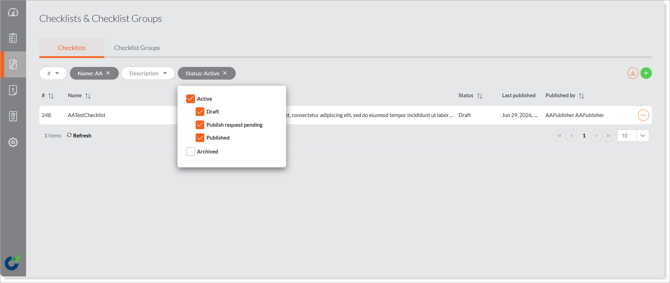
A checklist is always either Active or Archived. Within those, an Admin Portal user with the correct permissions can see the following states:
| State | What it means |
|---|---|
| Draft | Active but not available to Mobile App users. A checklist is in Draft when it has never been published, has been edited since it was last published, or has been duplicated, imported or newly created. |
| Publish Request Pending | A user without publishing permission has requested approval. The checklist is locked for editing until a publisher publishes or rejects the request or the requesting user cancels the request. |
| Published | Approved by a user with the Publish role (or an Administrator) and available to users in the Mobile App. |
| Archived (Unpublished) | A 'soft delete' that removes the checklist from the Mobile App / .mobi and from the active checklists list. |
Editing a published Checklist sends it back to Draft. Any change to a published Checklist immediately reverts it to Draft and it must be published again before your edits reach Mobile App users.
The publishing workflow at a glance
There are two paths, depending on whether you have publishing permission:
- Direct publishing – if you have the Edit and Publish roles and full site access, a Publish button is shown at the bottom of the checklist builder page. Clicking it publishes the checklist immediately and triggers the Checklist Published notification.
- Requesting publishing – if you do not have publishing permission, a Request Publish button is shown instead. You choose one or more eligible publishers, submit the request, and the checklist is marked Publish Request Pending and locked until a publisher acts on it or you cancel the request.
Locking
While a checklist is in the Publish Request Pending state it is locked:
- No edits can be made to it.
- Only eligible publishers or Administrators (e.g. users with the Administrator role) can act on it — to Publish, Reject, or cancel the pending request.
Once the checklist is published or the request is rejected or cancelled, the checklist is unlocked again.
Notifications
Four email notification triggers support the publishing workflow.
| Notification | Triggered when… | Sent to |
|---|---|---|
| Checklist Publish Request | A user submits a publish request. | The selected publishers. |
| Checklist Published | A checklist is successfully published. | The owner / editor (and users responsible for completing the checklist). |
| Checklist Publish Request Denied | A publish request is rejected. | The owner / editor. |
|
Checklist Publish Request Cancelled |
A publish request is cancelled. | The selected publishers. |
Publishing History
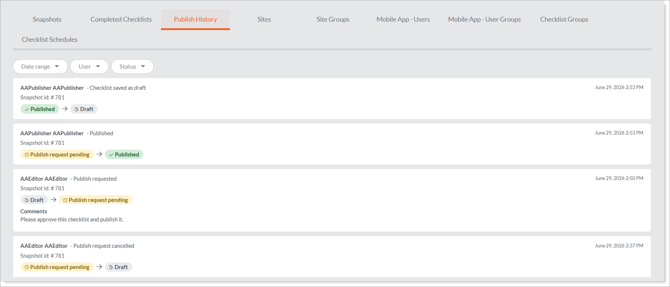
Every checklist keeps a history log so you can see who did what and when. The log records who requested publishing, when it was requested, who published, who rejected (with their comment), who cancelled a request and all status changes. Each checklist also shows 'Published by' and 'Published on' metadata in the grid and on the detail page.
Upgrading to this feature?
During migration:
-
All existing checklists will get the 'All users' user group assigned as editors but each user will only see the checklists that match their site access. If you want to limit who should be able to edit checklists change the editor selection in the checklist properties.
-
Every Admin Portal user who currently has the Checklists active – Edit role is automatically granted the new Checklists active – Publish role
-
Administrators keep full publishing rights.
-
Checklists that were already published to the Mobile App stay published. After upgrading, you can remove the Publish role from any users who should no longer be able to publish.
Learn this next…
How do I publish a checklist or request publishing approval in the Admin Portal?How do I approve or reject a checklist publishing request in the Admin Portal?
How do I give users permissions (Roles) in the Admin Portal?