
Completing a checklist
- Log in to the Mobile App or .mobi using the username and password provided to you by your system administrator.
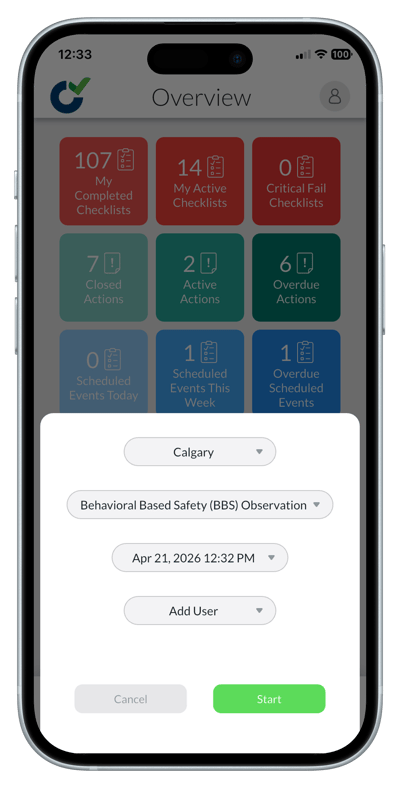
- Tap the green ‘Start’ button.
- Pick the site or location and then select the checklist you would like to complete.
- If other users will also work on the same checklist, add their names.
- Answer all the applicable questions.
- If the checklist has multiple pages, tap ‘Next’ until you reach the final page.
- At the bottom of the final page, tap ‘Save & Close’.
- The checklist is automatically submitted to the Admin Portal when it is saved and completed.
Notes
- If your checklist has a workflow with several steps, the buttons you can tap to move forward may look slightly different.
- You must answer all mandatory questions (indicated with an *) before you can save or move to the next page.
- Tap the info icon next to a question for additional notes and guidance on how to answer that specific question.
- To add a photo or file to an answer, tap 'Options' to the right of the question. You can take a new photo (if you are using a mobile device) or select an image from your photo library.
- Several additional options are available under the options menu at the top right of the app, including saves, comments, and search.
- You can tap the header of the page to bring up the options that were selected when starting the checklist (site, additional users, workflows, etc.).
- To return to an incomplete checklist (or edit a completed one), go to the 'Checklist' tab and choose the checklist you want to finish/edit.
- You can complete checklists even if you don’t have an internet connection if you are logged in.
- Once you are back online you can sync the app by sliding down on the screen. This will add all your completed checklists to your Admin Portal.
- More details about how to submit checklists can be found in the ‘Field Users’ category of the Help Center.