
Custom Reports are found in the ‘Reports’ area of the Admin Portal.
Custom Reports are created by the tech team at Certainty Software to meet specific reporting requirements. Custom Reports are created by us for you to meet your project requirements (e.g. OSHA 300 report, monthly safety report, quarterly board report, etc.).
Custom Reports can be emailed to subscribing recipients (defined by you) on a regular and scheduled basis.
In the Checklist Builder, when you are setting up a checklist, you can assign a custom report (one or multiple) to a checklist. So, when you go to download a checklist report, instead of having the standard PDF report, you would be able to select one of your custom reports and choose whether you want it in PDF, Excel, or Word format.
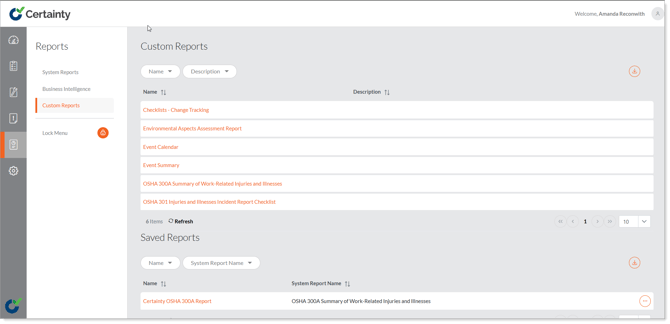
To run a Custom Report:
-
Click on the title (Name) of the report you want to run.
-
This will bring up the report filter which will allow you to define the parameters (e.g. date range, sites or site groups, etc.) you would like to run that report for.
-
Choose the report parameters you want.
-
Click ‘View Report’.
Once you have defined your report parameters and clicked ‘View Report’, your Custom Report will appear, and you will notice a number of report features and attributes that will allow you to further refine the report you have run.
These features are:
|
Show / Hide Parameters |
Show / Hide Parameters shows or hides the report parameters filter. |
|
Page scrolling |
If your report is more than one page, page scrolling allows you to easily jump to a page of your choice, the next or previous page or the first or last page. |
|
Keyword search |
Keyword search enables you to find particular keywords in your report. |
|
Save
|
Save allows you to save (export) the report you have run in numerous file formats including: XML, CSV, PDF, MHTML, Excel, TIFF and Word. |
|
Refresh
|
Refresh updates the data in your report in the event data in your instance of Certainty has changed since you ran the report or if you changed the report parameters. |
|
Zoom |
Allows you to choose different zoom options, like Zoom to page width, Zoom to whole page, 100 %, 150 %, etc. |
|
Hyperlinks
|
Hyperlinks are a link to another record in Certainty (e.g. completed checklist, overdue action) referred to in your Custom Report. Click the hyperlink to open that record. |
Learn this next ...
How do I use Business Intelligence (Power BI) in the Admin Portal?