
Before a checklist becomes available to Mobile App users it must be published.
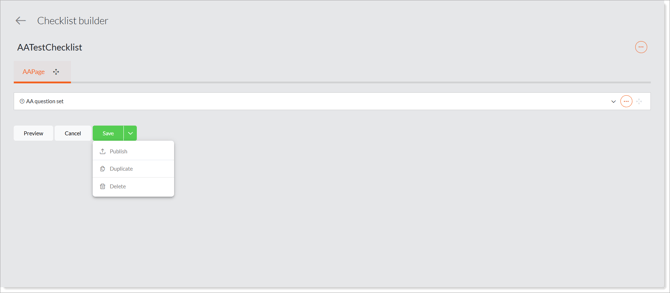
- If you have the Checklists active – Publish and Checklists active – Edit roles and access to all of the checklist's sites, you will see a Publish button and can publish directly.
- If you have the Administrator role or System Administrator role group you will see a Publish button and can publish directly.
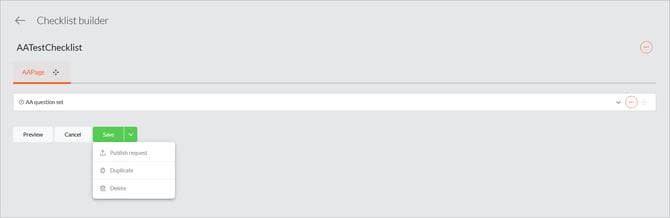
- If you do not have publishing permission and do not have the Administrator role or System Administrator role group, you will see a Request Publish button instead, and can ask an eligible publisher to publish it for you.
Not sure if you can publish? Open any Draft checklist and look at the button at the bottom of the screen. Publish means you can publish directly; Request Publish means you need approval. Ask your administrator if you need the Publish role.
Publishing a checklist directly
Use these steps if you have publishing permission.
- From the main menu, open Manage Checklists and select the Checklists tab. The grid lists your checklists with a State column (Draft, Publish Request Pending or Published).
- Click the checklist you want to publish to open it. Make any final edits and save.
- Click the Publish button at the bottom of the checklist screen (or from the Options menu at the top right of the checklist details page).
- Certainty validates your permissions, publishes the checklist and sets its state to Published. The checklist is unlocked and the Checklist Published notification is sent. The checklist is now available to Mobile App users.
Already published by someone else? If two publishers publish the same checklist at the same time, the first one wins. If you are the second, you will see a message that the checklist is already published.
Requesting publishing approval
Use these steps if you do not have publishing permission. You will send the request to one or more eligible publishers.
- Open Manage Checklists › Checklists and click the Draft checklist you want published.
- Click the Publish Request button at the bottom of the checklist screen.
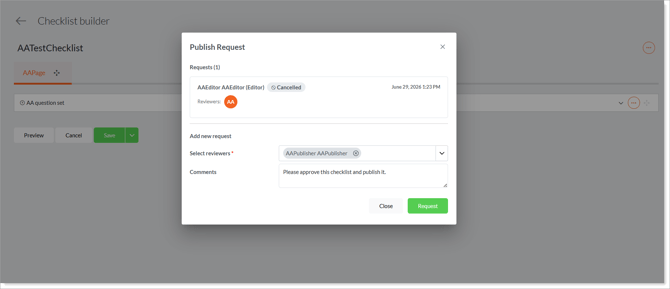
- In the pop-up, select one or more eligible publishers. The list shows only users who can actually publish this checklist — that is, users who have the Publish role (or are administrators) and have access to all of the checklist's sites.
- Click Request.
- The checklist moves to the Publish Request Pending state and is locked (no further edits until it is published or rejected). The Checklist Publish Request notification is sent to the publishers you selected.
Cancelling a publishing approval request
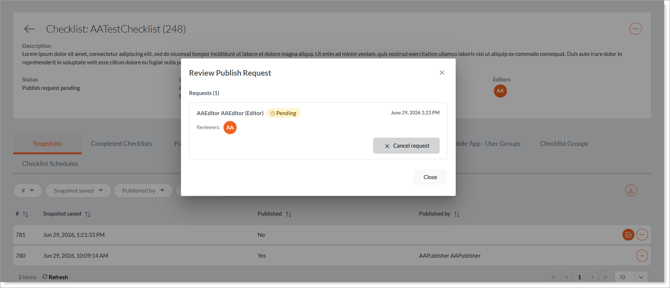
What happens next? A publisher will either publish your checklist (you'll get the Checklist Published notification) or reject the request and send it back to Draft with a comment explaining why (you'll get the Checklist Publish Request Denied notification). The rejection comment is visible to the checklist's editors and owners.
Editing after publishing
If you edit a checklist that is already Published, the last snapshot will be a Draft and your changes will not reach Mobile App users until it has been published again (directly or via a new approval request).