
Using AI Vision when completing checklists
- The 'AI Vision' sparkle icon appears next to the checklist component title if it is enabled.
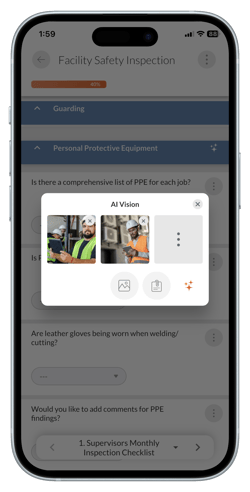
- Click on the sparkle icon, to open the 'AI Vision' pop-up.
- Click on the 'Image' or 'File' icon and attach any .jpeg photos or .pdf files you’d like AI Vision to analyze.
- Tap the 'AI Vision' icon to process the image or file.
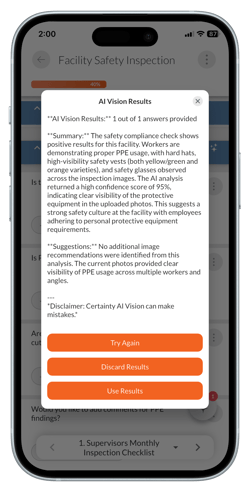
- When AI Vision is finished processing your images and files a small icon will appear next to the checklist component analyzed. If you tap it you can see the results and either try again, discard the results or use the results to answer the question.
- A larger 'AI Vision Summary' icon will be visible at the bottom of the screen. Tap each component/answer to see information about each AI Vision analysis.
Notes
AI Vision can make mistakes. It is important to review any AI Vision answers carefully.